



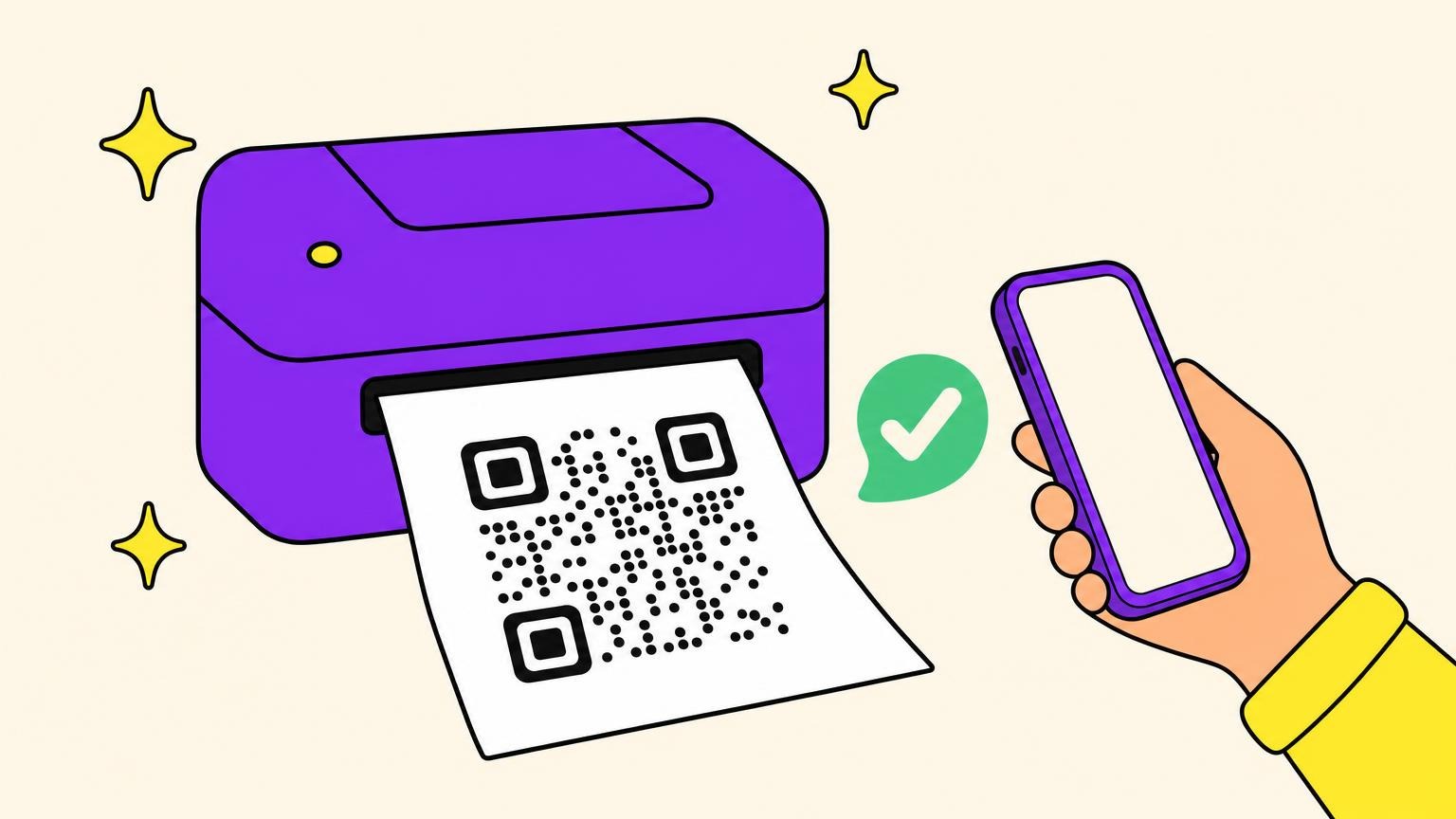
The part everyone worries about almost never decides the outcome. Your printer is fine.
How to print a QR code that still scans comes down to four things: the file you print from, the white margin around it, how the black is built, and the material it lands on. Inkjet, laser, office all-in-one, thermal label printer, they all manage it. One decision comes before all four, and it is static or dynamic.
If you already have a code, a ticket, a voucher, a return label, the next section takes two minutes.
If you are putting a code on a flyer, a menu, a label, packaging or a sign, the seven steps after it are yours.
Already Have a QR Code? Print It Properly in Two Minutes
You are not publishing anything, just getting one clean copy on paper.
- iPhone or iPad: same Wi-Fi network as the AirPrint printer, open the image or PDF, tap the Share button, scroll down and tap Print, tap No Printer Selected, pick it, tap Print.
- Android: Settings, Connected devices, Connection preferences, Printing, and turn on a print service once. Then, in the app holding the file, Menu, More, Share, Print. No print option? Google says screenshot the content and print that.
- Computer: print the original file, not the email preview. Into a document first? Word's path is Insert, Pictures, This Device.
Then the five rules that decide whether it reads:
- Print from the original file, not a screenshot of a screenshot. Each rescale and recompression rounds off the module edges.
- Do not crop the white border. Denso Wave, which invented the QR code, requires a margin four modules wide on all sides. That margin is part of the symbol.
- Do not stretch it. Drag a corner, never a side. Microsoft's instruction: hold Shift on a corner handle, or keep Lock aspect ratio checked.
- Print at 100%, not Fit to page. Scaling changes the size you measured without telling you.
- Skip draft mode and toner save. Both lay down less ink, right where the modules need edges.
Scan the printed sheet before you leave the house. If it reads first time from arm's length, you are done. The rest is for codes strangers have to scan.
Step 1: Decide Static or Dynamic Before You Generate
Decide whether the destination behind this code can ever change. Printing locks the answer in.
Heinz found out the hard way in 2015. It printed a promotional QR code on Tomato Ketchup bottles in Germany, let the campaign domain lapse when the promotion ended, and a pornographic site bought it. Every bottle already in a German kitchen started pointing there, and nobody could reprint them. The code itself was fine. The address behind it was the problem.
A static code has the destination written into the pattern: change it and the code is physically different. Fine when the destination never moves and the domain is yours. A dynamic code encodes a short redirect you control, repointed without reprinting.
Dynamic is not automatically safe. One designer on r/graphic_design reported a free generator that turned out to be a 14-day trial, dead after "the cards have already been printed and sent out." Whoever holds the redirect holds your print run.
A short link also prints better: it carries fewer characters, so the code needs fewer modules, so each module comes out fatter at the same size. Denso Wave recommends four or more printer dots per module for stable operation. GS1 puts the minimum module width at 0.396 mm for a point-of-sale code carrying a GS1 Digital Link. FireSprint, a wide-format shop, calls module size the one variable you control.
Permanent destination, domain you own: static is fine. Anything campaign-shaped or seasonal wants a dynamic code on a plan you pay for.
Step 2: Pick the File Format, and Get the Pixels Right
Four of the eight guides we checked for this search tell you to use 300 DPI. None says the number does not exist on an SVG.
Three things get called resolution:
- Image pixels per module. A raster property. Your PNG has it. Your SVG does not.
- Printer dots per module. The press's property. Denso Wave counts four or more per module: at 600 dpi that gives a 0.17 mm module, needing a scanner that resolves finer than 0.17 mm.
- DPI in a file's metadata. A tag. On vector it means nothing: no grid to count.
Then format by use:
- SVG. The default for anything going to a press. Adobe's framing: it stays sharp at any size, where a PNG softens once enlarged past its resolution. The mechanism, and the rescue when a PNG already went soft, is in why QR codes go blurry.
- EPS. Same job, older plumbing. Shops still list it by name, Sticker Mule included.
- PDF. Usually the wrapper the shop wants, carrying vector art, fonts and CMYK together.
- PNG. Fine at a fixed, small final size. Not for enlarging.
- JPEG. No. Lossy compression puts noise on the exact hard edges the scanner measures.
For a PNG, count modules, not inches. A short-link code runs 25 to 29 modules across, plus a four-module margin each side: up to 37 modules of picture. Vistaprint asks 300 DPI at final size for raster art, so a 1 inch code is 300 pixels, about 8 per module. Halve the pixels or double the print size and you are at 4, where edges mush. That is one shop's rule for raster files, and it means nothing on vector.
Physical size is a separate argument nobody wins: 1.16 cm, 2 cm and 1 inch, no primary source between them. Our size guide settles it.
Vector for everything that leaves your desk.
Step 3: Make the Black One Ink, Not Four
The black in your file is probably four inks: cyan, magenta, yellow and black, four chances to miss.
Build it as K100: C:0, M:0, Y:0, K:100. Kete Group's print registration guide files QR codes with small text and thin outlines: one ink, one plate, and plate shift stops mattering. Prepressure's rule of thumb keeps rich black for objects at least 5 millimetres thick. No module qualifies.
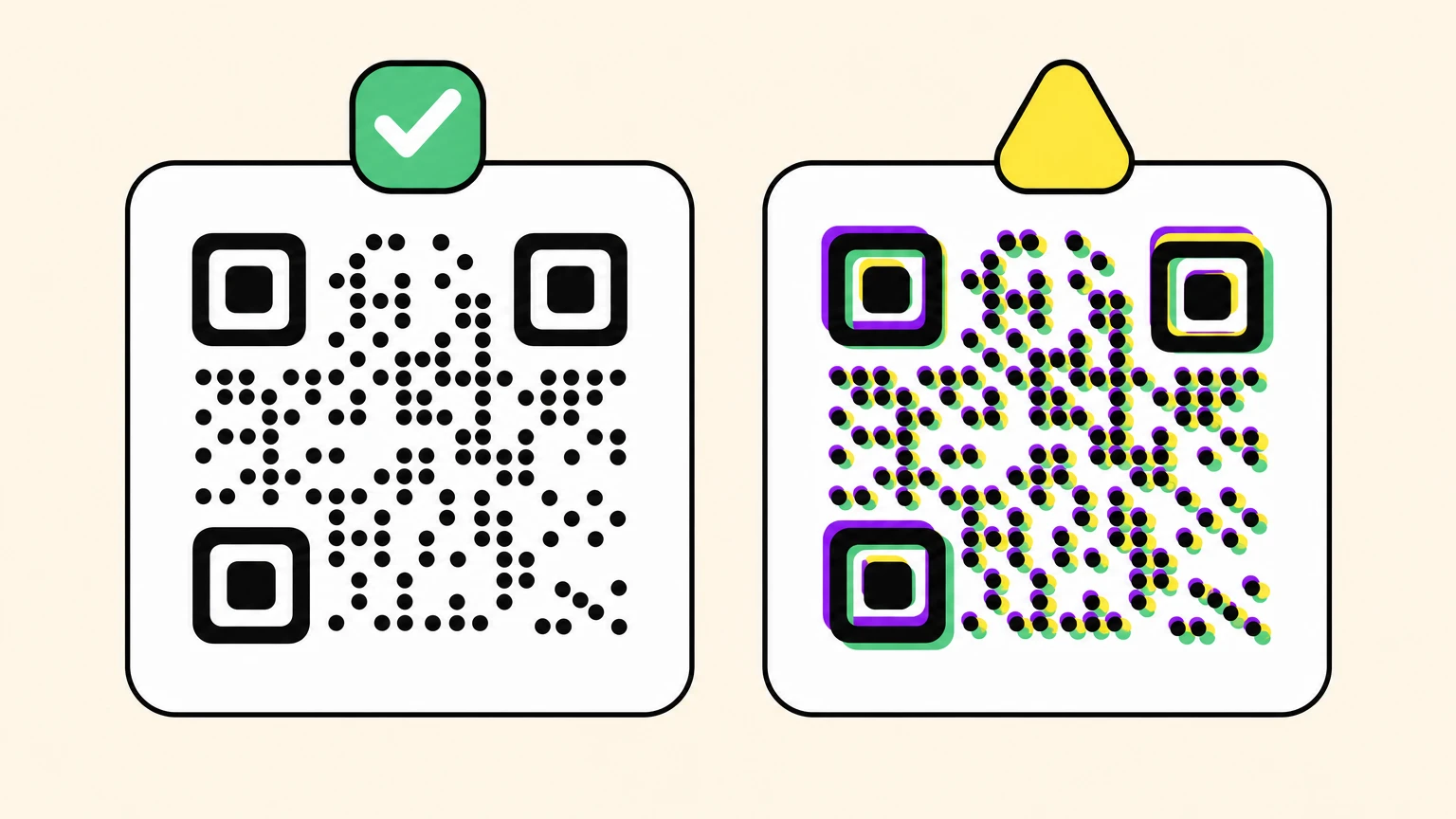
Kete's guide puts misregistration under 0.05 mm on digital, 0.05 to 0.10 mm on offset litho, 0.20 to 0.50 mm on flexography. Against Step 1's 0.396 mm floor, flexo tolerance alone can swallow a module.
It happens downstream, too. One operator on r/CommercialPrinting watched 1-bit QR bitmaps come out in all four colours after a Fiery upgrade: "even slight misalignment is easily visible and could spoil the QR."
Overprint is where two printer guides say opposite things. Kete tells designers to enable Overprint Fill on black text over a colour, so a plate shift cannot expose a white sliver. MOO wants overprint switched off in the files you send it. Follow whoever is printing yours.
GS1 supplies the colour rules. Dark on light is the safe default, though its 2025 guide allows the reverse at the checkout, and we tested what phones make of inverted codes. At least 30% symbol contrast, around 50% to be safe. Red is the trap: GS1 shows a red code that a phone decodes and a checkout scanner, lit with 660 nanometre red light, reads as blank.
One ink, K100, every time.
Step 4: Choose the Material and Finish Before the Size
The file was perfect, the proof cleared, then someone specified gloss lamination. A scanner reads the light coming off your artwork, and lamination changes that light.
GS1's 2025 colour and quality guide is specific here:
- Avoid printing a 2D barcode straight onto high-sheen or glossy material such as aluminium, tin or metallised film: reflections can hide the code or distort the shape of its squares. Matte black on a white background is GS1's fix.
- On transparent or semi-transparent packaging, print a matte opaque white patch first, black code on top.
- Leave the quiet zone more room than the minimum, because production has tolerances.
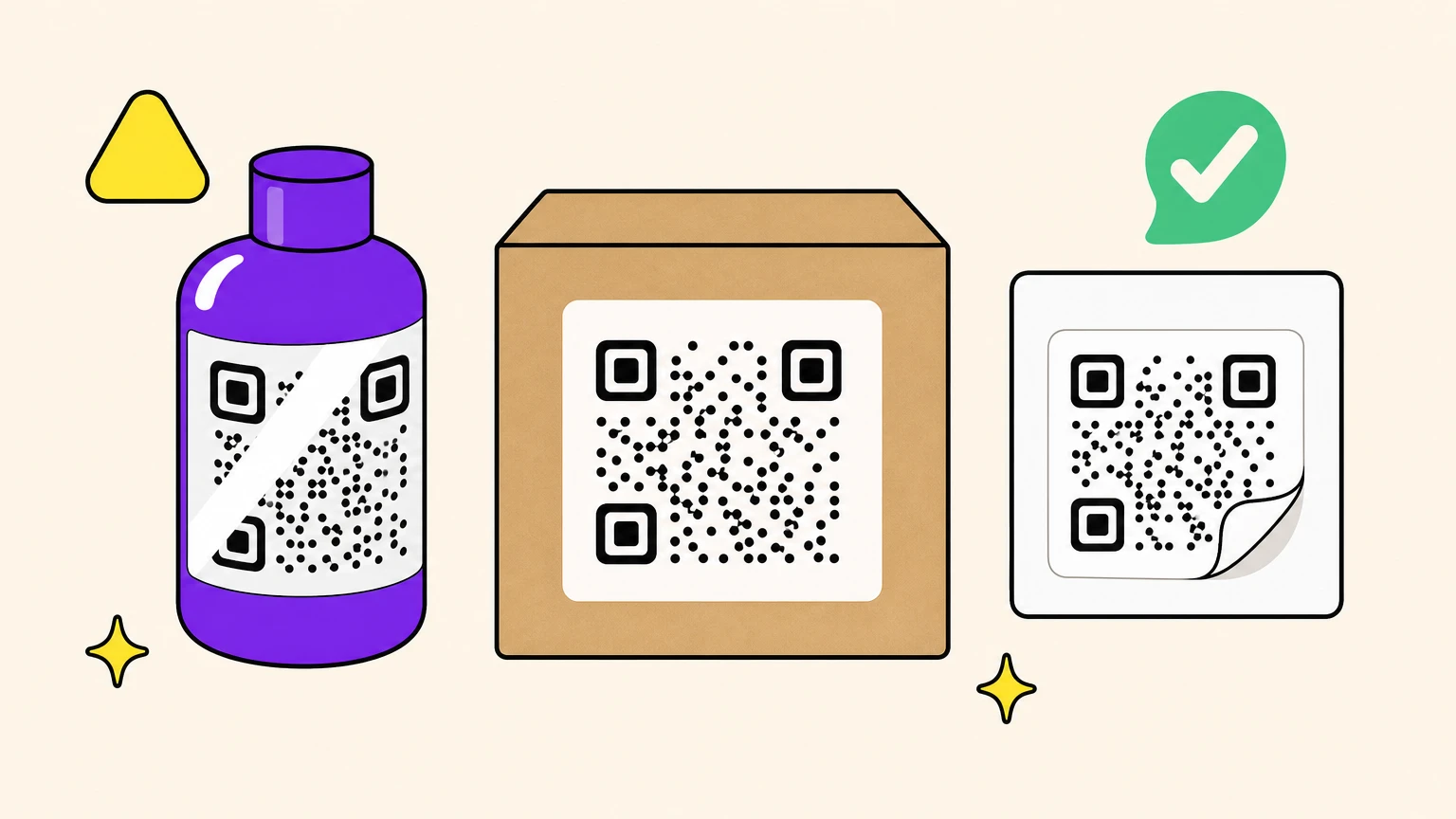
The substrates people ask about:
- Gloss paper or lamination: choose matte, or give the code more room.
- Vinyl and outdoor signage: matte face stock, for a surface that will be wet, angled and sunlit.
- Fabric: the weave is coarser than a small module, so the module must be coarser still.
- Kraft board: brown is a light background, not white. Test it against GS1's contrast floor, or borrow the white patch.
- Engraved metal: the substrate is the code, so contrast and matte finish are the job.
Glare, curves and creases belong to codes that refuse to scan.
Matte and light for everything. Gloss, dark stock and bare metal cost you size.
Step 5: Set Up Your Printer, Office or Thermal Label
Yes, your ordinary printer can do this. What matters is how many dots it puts in a small square, whatever brand is on the lid.
Three settings carry an office machine. Print at 100%, not Fit to page. Normal or best quality, never draft or toner save. Plain matte paper, not glossy photo stock. Underneath all three sits that same four-or-more dots per module: shrink-to-fit takes dots away, draft mode stops filling the rest.
A thermal head is stricter, firing a fixed grid of dots. At 203 dpi one dot lands every 0.125 mm, so a module has to be a whole multiple of that, never two and a half. Zebra's ^BQ command sizes the code with a magnification factor from 1 to 100, and its defaults track the head: 2 on a 200 dpi printer, 3 on 300, 6 on 600. Send a bitmap scaled to an arbitrary size instead and the modules land on uneven dot counts, some two dots wide, some three.
"A label printer" is not one spec: Brother's range runs from 180 dpi on the PT-D460BTVP to 300 x 600 dpi on the QL-800.
More than a few hundred labels? A 300 dpi head beats a 203 dpi head for one reason: more dots per module.
Step 6: Hand the File Over and Proof It Under Real Light
The shop will not open your file and think about your QR code. It runs a preflight, and whatever is loose gets resolved without you.
Outline or embed every font before export. Vistaprint flags unembedded fonts as a common rejection reason. The text at risk is the furniture around the code: the "Scan me" caption that reflows into the quiet zone when a font gets swapped.
Send vector inside a print-ready PDF, and read the shop's own sheet; they differ. MOO wants PDF/X-1a:2001, CMYK and flattened transparencies. Sticker Mule wants 1/16 inch bleed and a 1 pt minimum line. Vistaprint wants 0.125 inch bleed.
Ask for a physical proof, and say why: you need to scan it, not look at it. A desk lamp proves nothing about a code that will hang in a window or live outdoors at a low sun angle. Run the three-minute proof from that same size guide, in the place where the code will live.
The proof is the only part of this you control. Everything before it is a prediction.
Step 7: Print Codes That Outlive the Print Run
Six of these steps protect the print run. The first one protects everything that happens after it.
That first step is what Oh My Code is built for. Static codes are free for anyone to generate, exported as PNG and SVG, and vector holds at any size, so Step 2's DPI question disappears. A dynamic code keeps its destination editable after printing, and it carries a short link: fewer modules, fatter squares, the argument from Step 1. Dynamic codes sit on the paid plans, 14-day trial included.
Print something you can still change your mind about.
Printing QR Codes FAQ
Can a regular printer print QR codes?
Yes. An ordinary inkjet or laser printer produces a scannable code. What matters is dark on light contrast, enough printer dots per module (Denso Wave recommends four or more), a matte surface rather than glossy photo paper, and printing at 100% rather than fit to page. A label printer gives you consistency at volume. It does not make the code any easier to scan.
How do I copy a QR code into a document?
Insert the original file instead of pasting a screenshot: a screenshot carries only what was on screen, the file carries its own resolution. In Word that is Insert, then Pictures, then This Device. Resize by dragging a corner handle with Shift held, or with Lock aspect ratio checked; a side handle stretches the grid out of square.
Do QR codes still work if you screenshot them?
Usually. A screenshot is another copy of the same image, and Google's own Android printing instructions tell you to screenshot the content when an app has no print option. Two conditions: capture the whole code including its white margin, and do not re-compress it repeatedly. A ticket whose code refreshes on a timer, as Ticketmaster's SafeTix does, is built to reject a screenshot.
Can you photocopy a QR code?
Usually, once. Copying a copy is where it breaks down, and a copier's default scaling can eat part of the four-module margin Denso Wave requires. Print from the original file when you have it. Otherwise copy at 100%, check the white border survived, and scan the copy before you hand it over.
What is the FBI warning about QR codes?
The FBI's Internet Crime Complaint Center warned in 2022 that criminals cover a legitimate printed code with a fraudulent sticker to redirect scans, and again in 2025 about unsolicited packages carrying malicious codes. For anyone printing, the takeaway is physical: a code in public is one somebody can sticker over, so check yours the way a scammer would.