



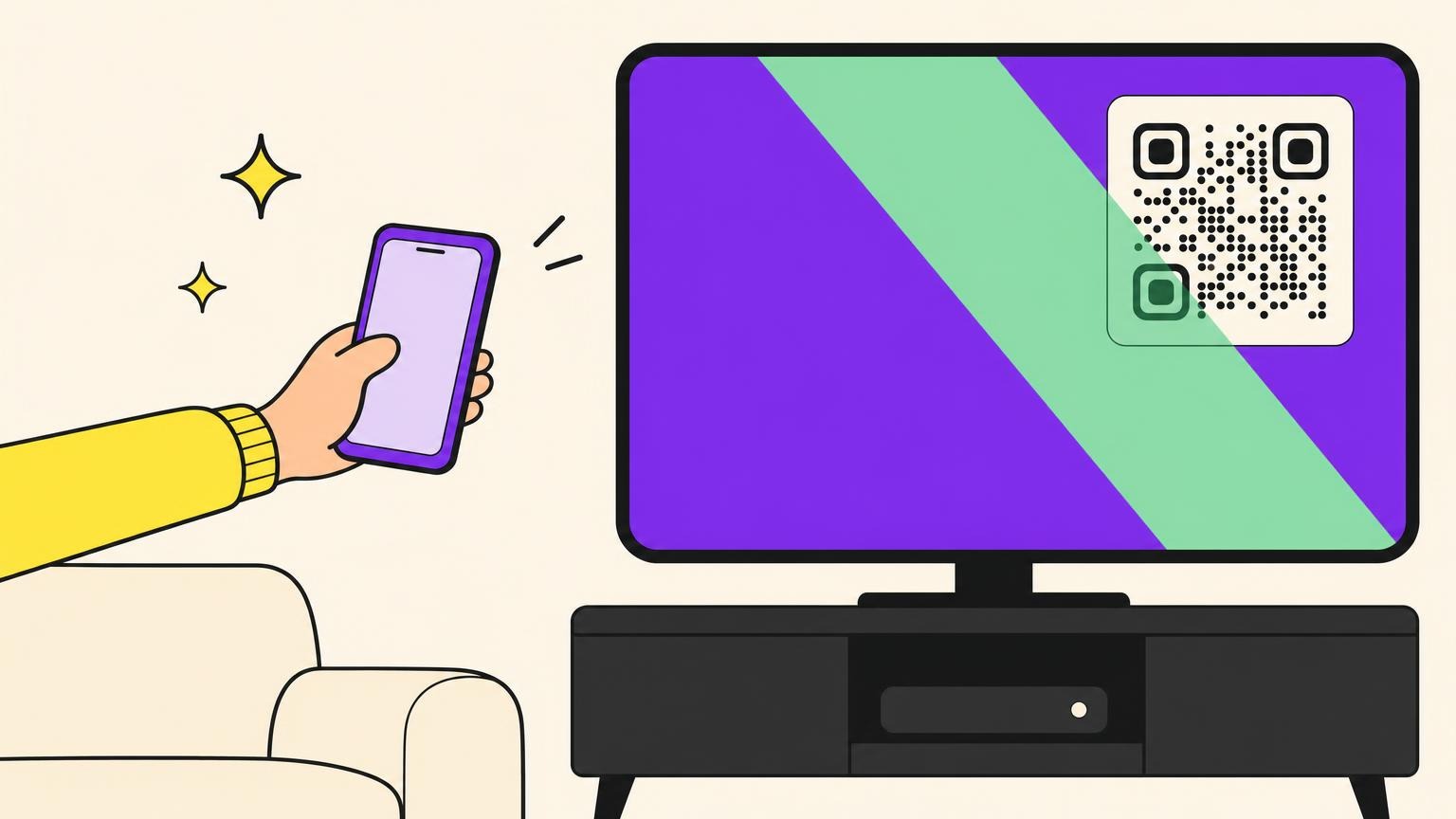
The TV is showing a QR code. You're holding your phone up from the couch like a remote that stopped working, arm out, squinting. No banner, no link, nothing.
Yes, QR codes scan fine off screens. A camera reads pixels the same way it reads ink. A QR code on your TV is the hardest version of that job: the panel throws glare, the code sits small in a corner ten feet away, and auto-brightness dims it at the worst moment. Fix those three things and it scans in seconds.
What follows: why it fails, the sixty-second fix, where each app hides its code, the typed fallback, and how to put a scannable one on screen yourself.
Why the QR Code on Your TV Won't Scan
A TV is a mirror with a picture on it, and you're asking a camera to read fine detail off it from three metres. Barcode-scanner vendors rank TV screens among the trickiest surfaces to scan. Your phone is fine. Four things aren't.
Size versus distance is the big one. A code needs to be a tenth as wide as the scanning distance: ten feet of living room wants a twelve-inch code, three metres wants thirty centimetres. The square on your TV is fist-sized, in a corner.
Glare and angle come next. Overhead lights bounce off the glass into your lens, and LCD panels wash out off-axis, so the side of the room costs you twice.
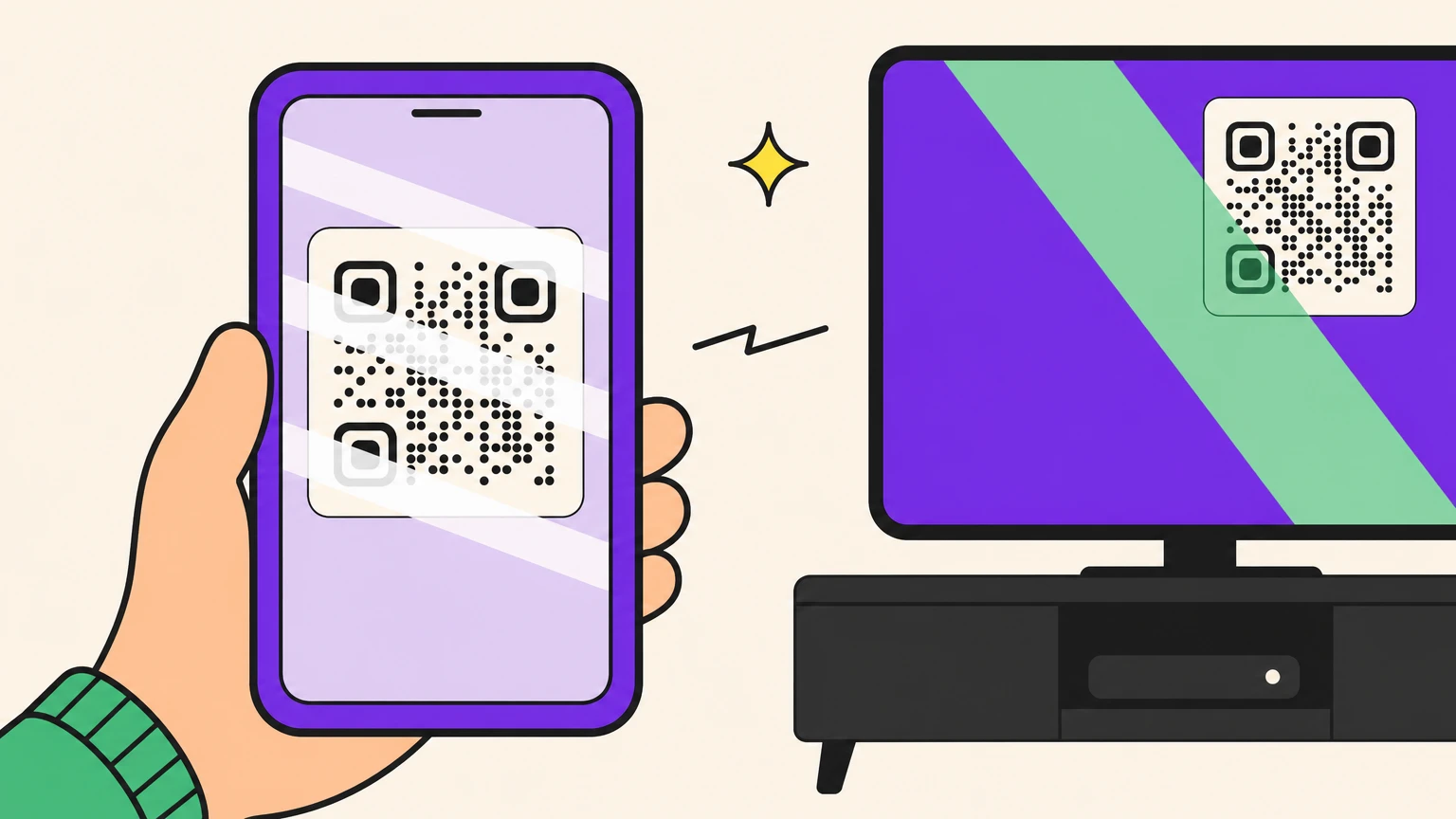
Moiré is the one nobody names. Photographing a pixel grid with another pixel grid throws faint parallel bands across the code. Your eye barely registers them; the decoder chokes. Rotating the phone ninety degrees realigns the grids and sometimes clears it.
Brightness and focus do the rest. Auto-brightness picks its moment to dim the panel, and a phone lens wants six to twelve inches to lock onto a small code. Pinch-zooming from the couch is exactly backwards.
Each one has a move against it.
How to Scan a QR Code on a TV Screen in 60 Seconds
Run these in order. Most people are done by step three.
- Walk to the TV. Close the distance instead of zooming: six feet beats ten, three beats six. That alone collapses the sizing problem.
- Kill the reflection. Get out of the line between lamp and panel, or switch it off, and stand square to the screen.
- Give the code a fresh screen. Back out and re-open the sign-in screen. A stale code never resolves, however well you frame it.
- Use the native camera app, not a chat or gallery app. On Android the QR toggle has to be on in the camera's own settings (Camera, gear icon, scan QR codes), the most common silent blocker. iPhone's stock Camera needs none. The full per-device guide to scanning a QR code covers both.
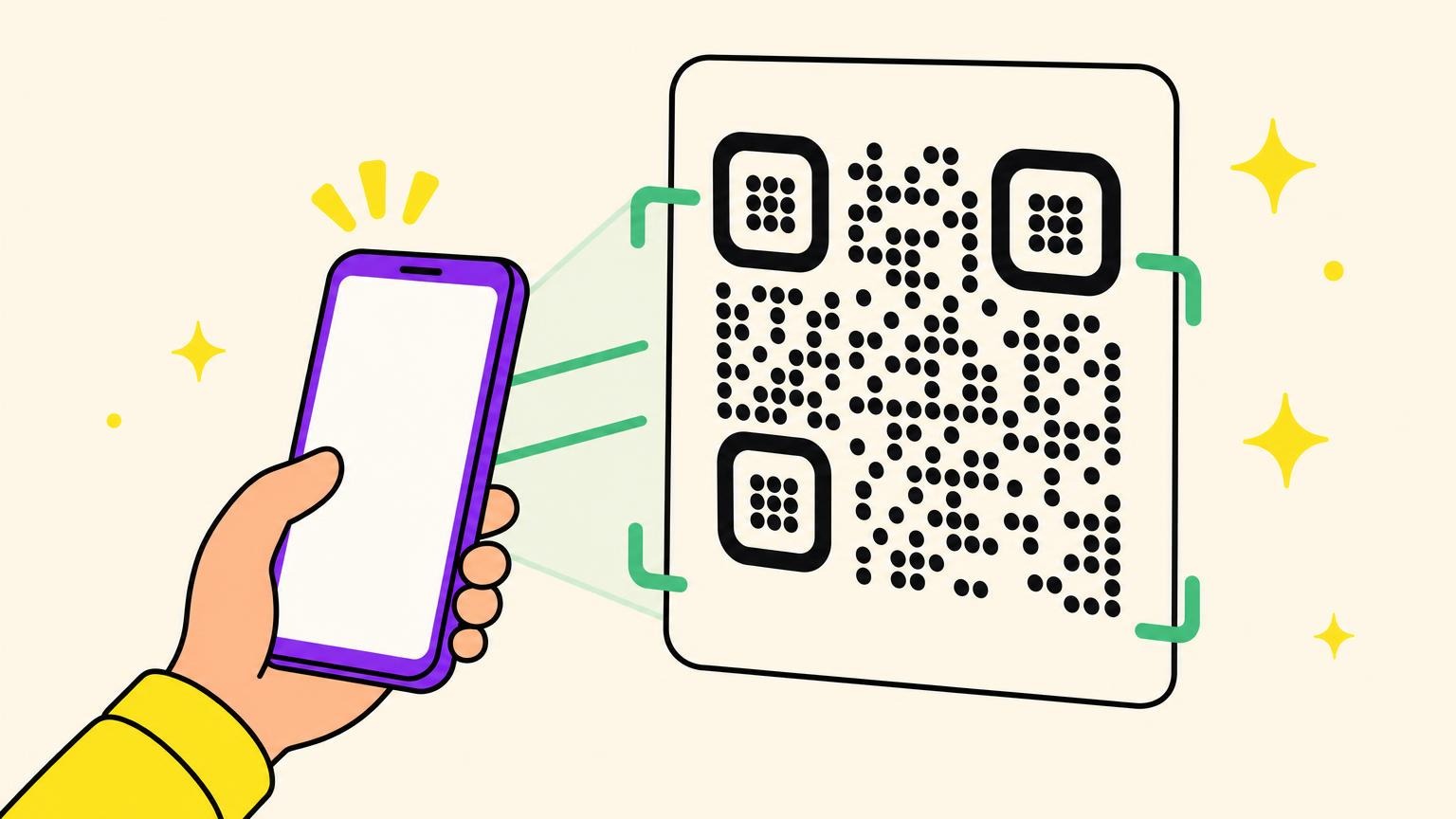
- Fill the viewfinder, hold two seconds, tap the screen to force focus. Seeing bands? Rotate the phone ninety degrees.
- Tap the banner, then check the code on your phone matches the one still on the TV. That match stops a stray scan hijacking your sign-in.
Where to Find the QR Code on YouTube, Netflix, Google TV, Prime Video and Samsung
Your TV doesn't have a QR code. The app does, and each hides it somewhere different.
YouTube. Open the TV app and select Sign In. Scanning the code opens YouTube on your phone, you pick the Google account, and the TV signs itself in. The point is dodging the on-screen keyboard, so don't start typing.
Netflix. The code sits on the TV's Sign In screen beside a Use Phone option: smart TV apps, Chromecast, Fire TV Stick alike. Scanning only opens netflix.com or the app. The real authorisation is the Sign in to TV tap afterwards, which is why people swear it failed when it worked.
Google TV. Two codes exist, and everyone confuses them. Account sign-in appears during setup. Quick Connect, under Settings > Network, is a separate Wi-Fi credential code you scan from your phone's Wi-Fi settings, not the camera, with the phone already on that network.
Prime Video. Settings > Registered Devices carries the code and sends your phone to the registration page. Casting from the phone skips the on-TV login entirely.
Samsung. This is SmartThings, not a TV feature. First-run setup offers Smartphone as a method. Afterwards it lives under Settings > General or Network, then device connection or mobile pairing, and it moves between firmware versions. Phone and TV must already share Wi-Fi and a Samsung account.
The QR Code Still Won't Scan? Use the Typed Code Instead
Every major TV pairing flow ships a non-QR fallback. The platforms don't fully trust their own QR.
- YouTube: open yt.be/activate in any browser and type the code on the TV. The remote is a third supported path.
- Netflix: type the email and password with the remote. Slow, but indifferent to glare.
- Google TV: type the Wi-Fi password by hand, or run setup from the remote.
- Samsung: add the TV manually inside SmartThings instead of scanning.
- PlayStation: enter code manually sits on the same screen as the QR, and in one walkthrough it worked when the QR wouldn't.
If the typed code fails too: reload it, clear the app's cache then its data, unplug the TV for a minute, then test the account elsewhere.
One honest limit: this assumes a working smartphone in the room. Households without one get locked out of their own TV.
How to Get a QR Code on TV That People Can Actually Scan
Flip the camera around: now you're putting the code on screen. Lobby loop, menu board, TV spot.
Apply that one-tenth rule to a living room and the numbers get ugly. A couch ten feet from the screen wants a twelve-inch code: on a 55-inch set, roughly a quarter of the screen width. No brand team signs off on that, which is why most TV QR codes fail.
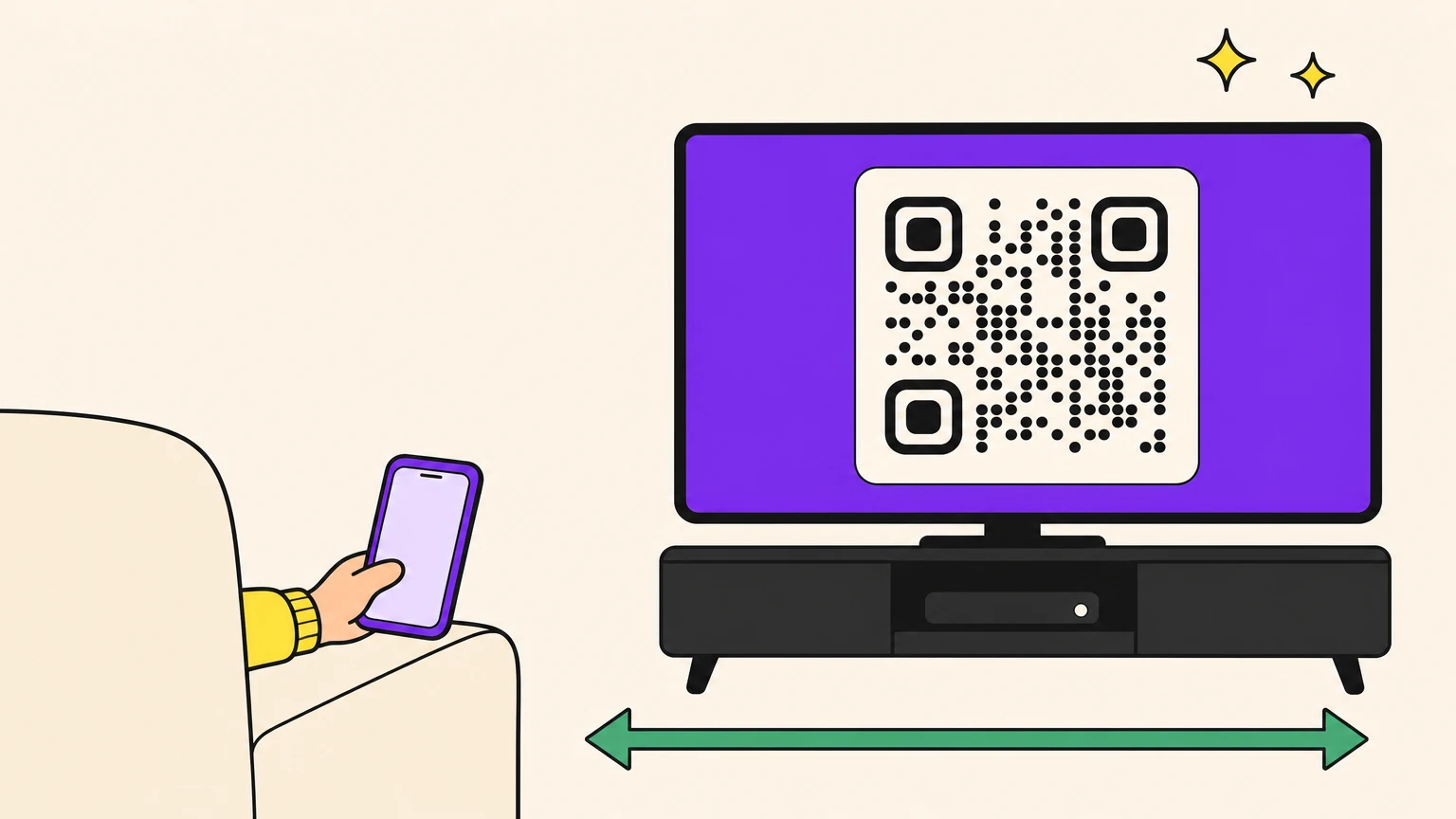
TV-ad guidance agrees: one sixth of the screen height minimum, high contrast, five to eight seconds on screen. Five seconds is the decode floor, not the human one: ten to fifteen lets someone find their phone first.
The ratio is deliberately conservative so budget phones and bad light don't break the scan. Round up, never down.
Give it a clear quiet zone, not a lower-third tuck. Hold it still instead of drifting with the motion graphic. Go light on styling.
Then the test nobody writes down: sit on the actual couch, at the actual distance, in the actual lighting, with the oldest phone in the building. If it doesn't catch in three seconds, it's too small. Still refusing? Work through the usual reasons a QR code won't scan.
Now Make a QR Code Worth Pausing the Show For
Six weeks in, the landing page changes. The graphic is already on air, in a render queue you no longer control. Same trap as print, except you can't pulp the run.
A dynamic QR code closes that gap: the square on screen never changes, the destination does. Swap the landing page mid-campaign, or after the campaign ends, without re-encoding a frame, re-exporting a graphic, or begging anyone for a new master.
Then the export itself. At a quarter of a 4K screen, an upscaled PNG turns to mush, and mush doesn't decode. Oh My Code exports SVG, so the code stays sharp at whatever size the couch demands.
Put one on screen that actually scans.
FAQ
Where is the QR code on a smart TV?
The TV itself doesn't have one. A code only appears inside a sign-in or setup screen, generated by the app you're logging into. On Samsung, mobile pairing or smart features sometimes has to be enabled and the firmware updated before any code renders.
How do I scan a QR code on my own phone screen?
You can't, not with that phone's own camera. Screenshot the code, then run an image decoder against it: Live Text in Photos on iPhone (enable it at Settings > General > Language & Region), Google Lens or the gallery scan icon on Android. Crop tight around the square if it refuses.
How do I scan a QR code without an app?
You already can. Both iPhone and Android read QR codes with the stock camera app, no download required. Android often needs the QR toggle switched on in camera settings first, which is why people assume their phone lacks the feature.
My phone scans the TV code but nothing happens. Now what?
Reload the code on the TV, then go straight to the typed fallback instead of rescanning. Two different failures look identical here: no link pops up at all, or your phone reports you're signed in while the TV sits on the same sign-in screen. The fallback clears both.