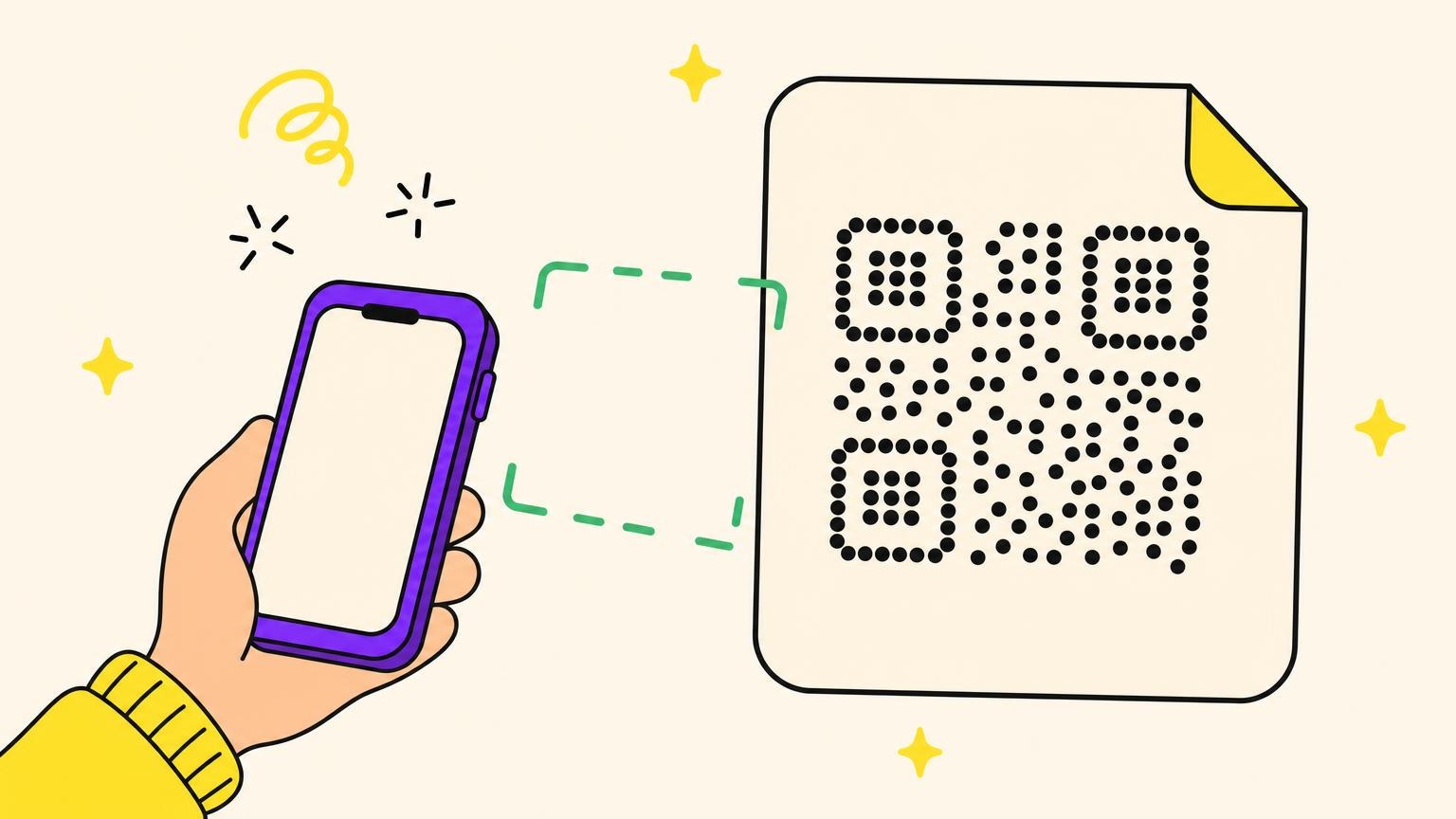




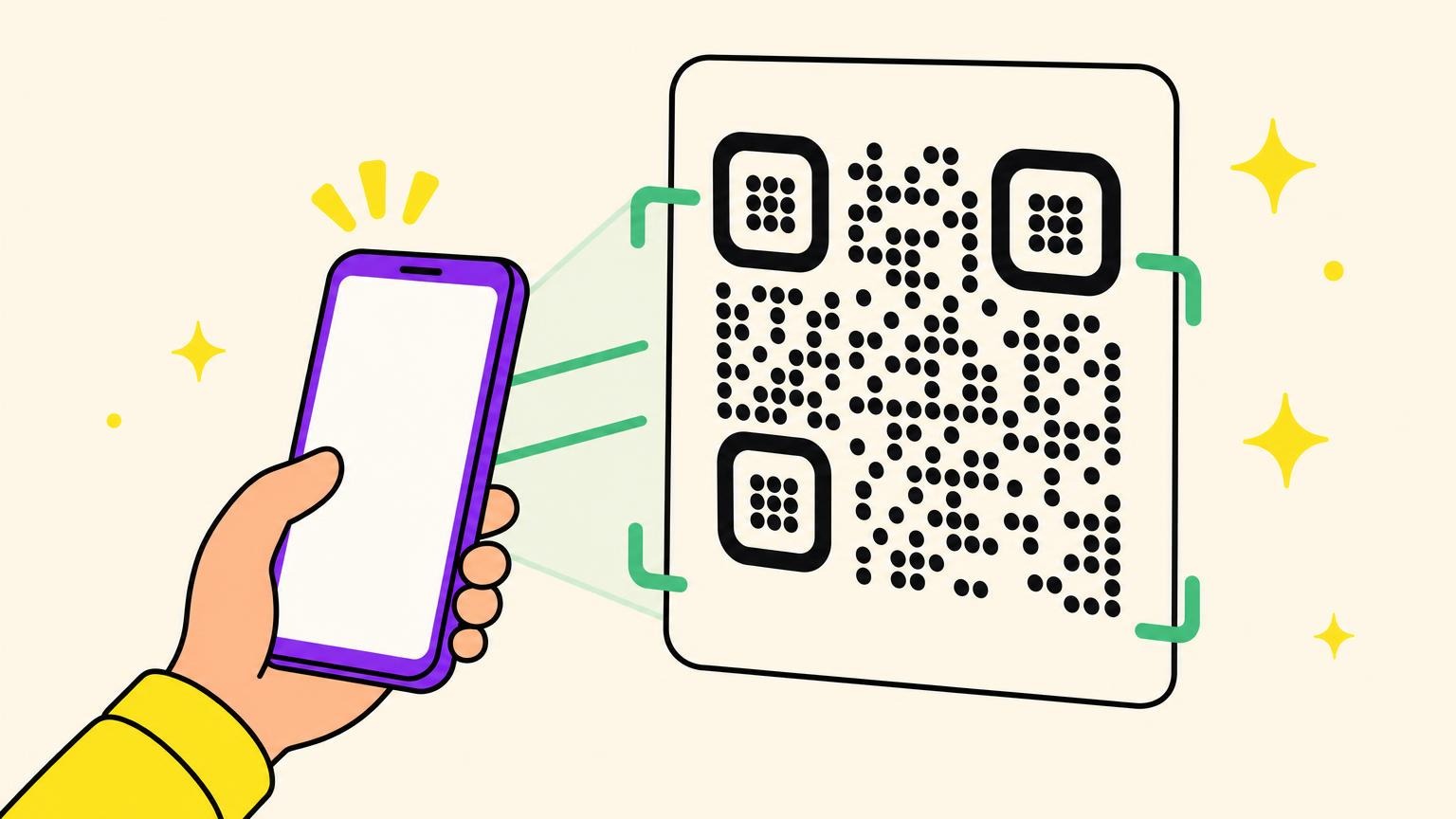
Here is how to scan a QR code on any current phone: open the camera app in photo mode, point it so the whole square sits inside the frame, hold steady for a second, then tap the link that pops up. No shutter press, no app, no download.
That covers most of it. The moments it doesn't are the ones that send you to Google, which is presumably how you got here.
So this guide runs situation by situation: on an iPhone, on Android and Samsung, from a screenshot already in your photos, off a TV or a computer screen, and when nothing scans at all.
How to scan a QR code on iPhone
Open the Camera app in photo mode, point it at the code, and tap the notification banner that appears.
- Open the Camera app and stay in Photo mode. Detection doesn't run in Video mode.
- Point it so the entire square sits inside the frame, and hold still.
- Wait for the banner. No shutter to press, nothing to tap.
- Tap the banner to open the link, the contact card, or the Join Wi-Fi Network prompt.
No banner? Check Settings > Camera > Scan QR Codes. On by default since iOS 11, but it can be switched off.
The faster route is the one nobody sets up. Go to Settings > Control Center and tap the green plus next to Code Scanner. Or touch and hold the Control Center background, tap Add a Control, add Scan Code.
It opens straight into a scanner with a flashlight, no mode to get wrong. Worth setting up on a parent's phone.
The two paths aren't identical. Control Center's scanner has been reported to hang on vCard contact codes on iPhone 15 and 15 Pro while the Camera app reads the same code fine, so if one stalls, try the other.
How to scan a QR code on Android (including Samsung)
Open your camera, point it at the code, and tap the link that appears.
- Open the Camera app and point it at the code, whole square in frame.
- Wait for the bubble or link preview to show up.
- Tap it to open the link, add the contact, or join the network.
- Nothing appears? Open Camera > settings gear > More settings and turn on Camera scan suggestions. Wording moves by manufacturer.
Quick Settings hides the faster scanner. Swipe down with two fingers, look for Scan QR code, and if it isn't there, tap the pencil icon to add it. Android 14 and up ship it with nothing to install: Pixel 5 and later, plus, in Google's wording, some other Android phones.
If you own a Samsung, stop looking for Bixby Vision. The dedicated scanner was deprecated around One UI 4 back in 2022, and Samsung's current support article documents two methods without naming it once. What works: the Scan QR code icon in Quick Settings, and the Camera app in Photo mode, with a QR toggle inside Camera Settings if it doesn't auto-scan.
Code already on your screen? That's the next section.
How to scan a QR code from a screenshot or saved photo
You can't point a camera at the screen in your hand, so let the phone read the picture instead.
- If the code is on your screen, screenshot it. iPhone: side button plus volume up. Android: power plus volume down.
- Open it in Photos, Google Photos, or your Gallery.
- iPhone: press and hold on the code, or tap the Live Text icon at the bottom right. Android: tap the Google Lens icon, or press and hold in Samsung Gallery.
- Tap the detected link to open, copy, or share it.
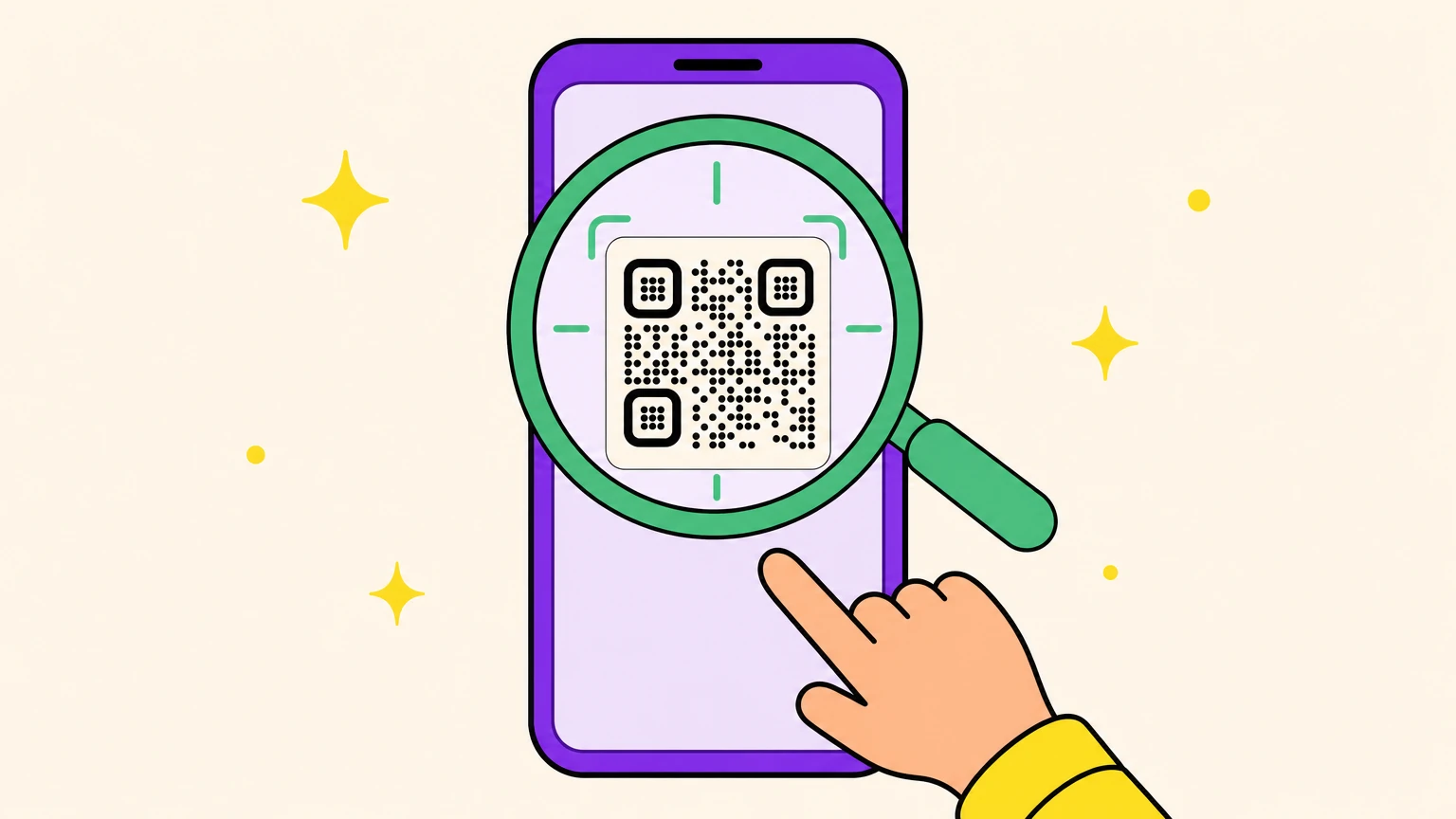
The iPhone half needs Live Text on: Settings > General > Language & Region. With it off, nothing appears and the code looks broken.
Circle to Search skips the screenshot: press and hold the home button or navigation bar, then circle the code on screen. Pixel 6 and later, the Galaxy S24 series, and select other Android 14 flagships.
A QR code's destination stays invisible until it's decoded, which is why phishing hides inside them and link filters miss them. A sticker pasted over an original is the tell. Check the preview before you tap, and learn how these scams actually work.
How to scan a QR code on a TV, monitor, or computer
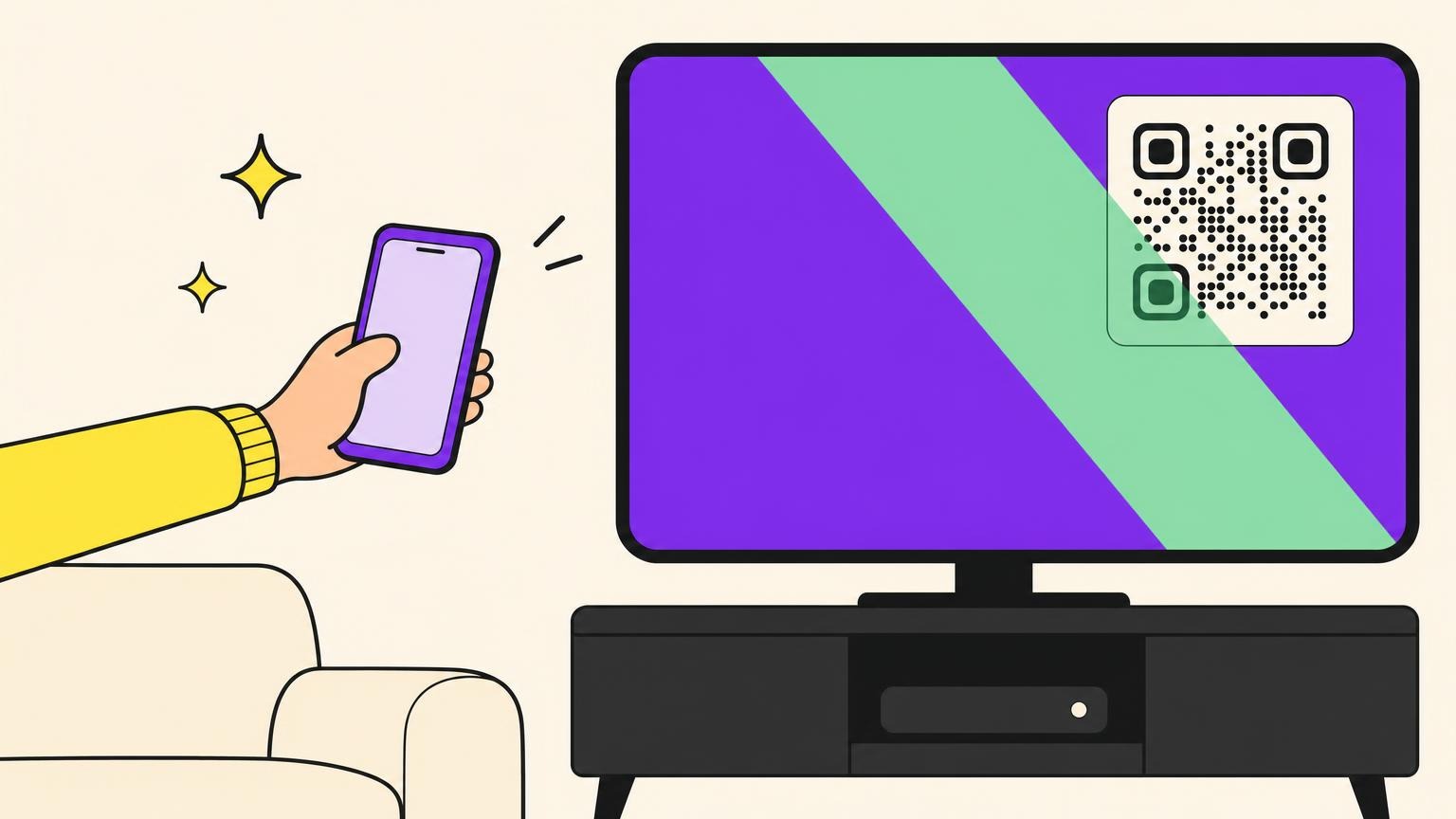
Scan the live screen, not a photo of it, and tilt the phone so the reflection misses your lens.
- Set screen brightness around 70 to 85 percent. Too dim won't resolve, too bright glares.
- Start about a foot (30 cm) back and move in slowly, whole code in frame.
- Tilt the phone off square, and kill any lamp behind you.
That's the same scan that signs you into YouTube on a smart TV.
Most people assume a computer can't read a QR code. It's a right-click.
- Chrome (Windows or Mac): right-click the code and choose Search image with Google Lens. It decodes in the side panel. Drag a saved file into a tab first. Not Safari, not Firefox.
- Windows 11: the Camera app has a barcode button by the shutter. Webcam only, no saved images.
- Mac: no native scanner. With a nearby iPhone, right-click inside Notes or Mail and choose Import from iPhone or iPad > Scan Documents.
Browser-based decoders that take an uploaded image exist too.
Big screen still fighting you? Here's the full guide to QR codes on TV: glare, moiré, and where each app hides its code.
QR code won't scan? Four fast fixes
Most of the time it's distance, not the code.
- Back away, don't lean in. Newer phone cameras can't focus up close, roughly 6 inches on an iPhone 13 and 8 on a 14 or 15. Start a foot out, move in slowly.
- Wipe the lens and fix the light. Even light, no reflection on the code, flashlight on in the dark.
- Get the whole code in frame, corner squares included. Error correction recovers roughly 7 to 30 percent of a code's data, which is why a scuffed code still works, but a damaged corner square kills it.
- Switch methods instead of repeating one. Control Center instead of the Camera app on iPhone, the Quick Settings tile on Android.
Still nothing? Then the problem is probably the code, not you: every cause of a QR code not scanning, with the fix for each.
Now make one worth scanning
Everything above is the reading end of a QR code. The making end takes two minutes, and plenty of codes that fail every fix above were broken at creation: printed too small to focus on, damaged at the corner squares, or pointing somewhere that has since moved.
Oh My Code makes dynamic QR codes: the destination can change after the thing is printed, every scan gets counted, and the design survives a poster or a menu card. 14-day trial.
You now know every way a QR code can be opened, which makes you unusually qualified to make one that actually does. Make one that opens on the first try.
Frequently asked questions
What is the easiest way to scan a QR code?
Open your phone's camera in photo mode, fill the frame with the code, hold steady, and tap the link that appears. No app, no shutter press. If nothing pops up, the scan setting is off: Settings > Camera on iPhone, or the camera's settings menu on Android.
Can I scan a QR code without an app?
Yes, on any current phone. iPhones have read codes straight from the Camera app since iOS 11 in 2017. Android 14 and later ship a built-in reader in the Quick Settings panel, and Samsung's Galaxy phones carry the same Scan QR code icon there.
How do I scan a QR code on my own phone screen?
Screenshot it, then open the screenshot. On iPhone, press and hold the code in Photos or tap the Live Text icon at the bottom right. On Android, tap the Google Lens icon. On a Pixel 6 or newer and the Galaxy S24 series, Circle to Search reads it straight off the screen, no screenshot needed.
Where is the QR reader on my phone?
It's the camera app, which is why there's no separate icon to find. Both systems also hide a dedicated scanner: on iPhone, add Code Scanner from Settings > Control Center; on Android 14 and later and on Samsung, look for the Scan QR code tile in Quick Settings.
Can I scan a QR code from a picture?
Yes, no second device needed. Open the image in Photos on iPhone, or in Google Photos on Android and tap the Lens icon. On a computer, right-click it in Chrome and choose Search image with Google Lens, which works on Windows and Mac but not Safari or Firefox.