


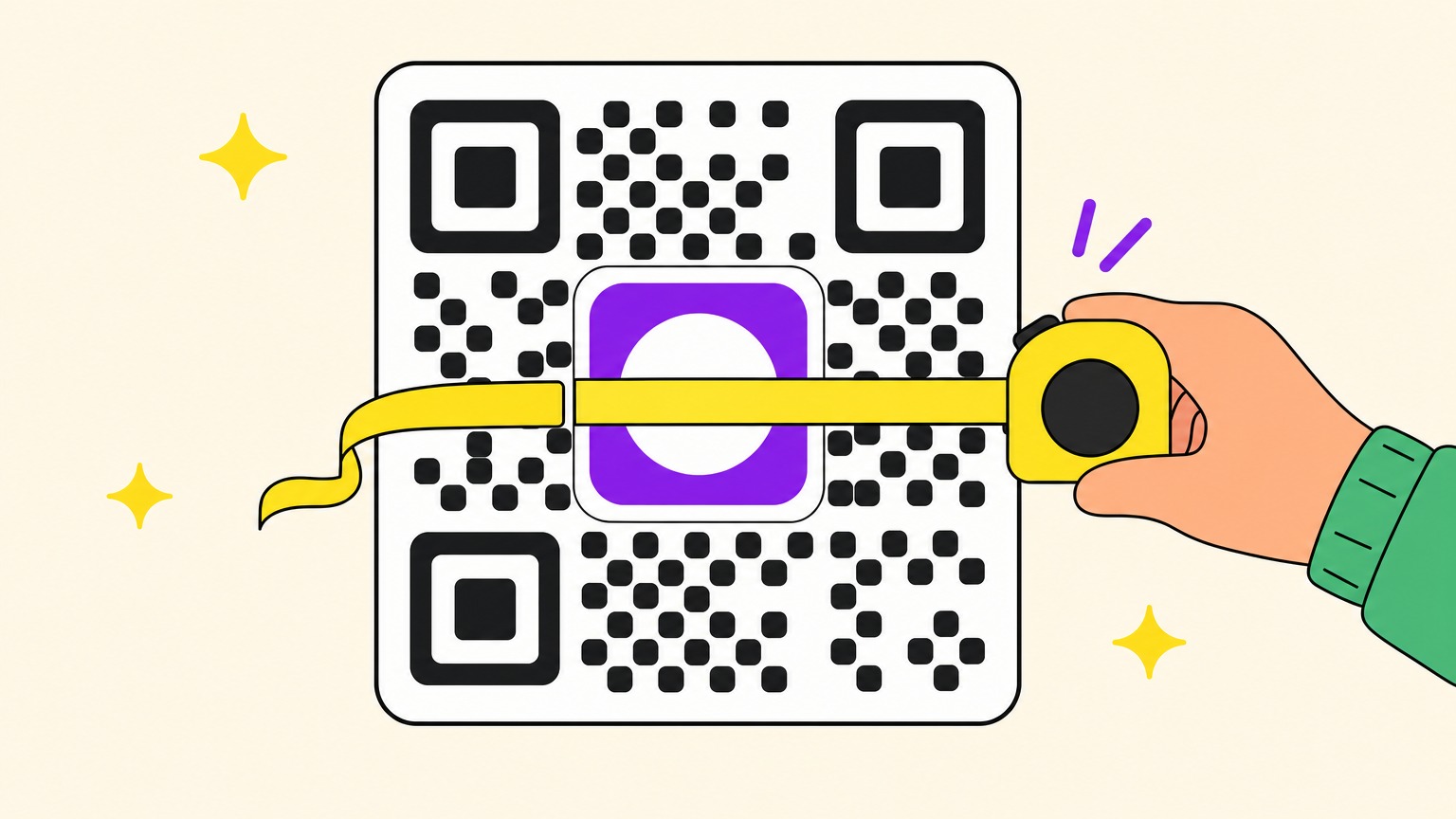
A QR code with a logo in the middle scans until the logo gets too big, and Google's first page can't agree how big: 15 to 20%, under 20 to 25% of the width, 30%, under 40%. Nobody says 30% of what, or shows a test. So we ran one on 9,624 images: at error correction H, a centred logo could cover 12 to 18% of the code's surface, depending on the content, and every image still read; at the usual level M, 4 to 10%.
At 30% of the surface, the most quoted figure, Apple's detector read nothing.
Below: the numbers, why the rules disagree, and a pre-print check.
How Big Can a Logo Be in a QR Code? We Measured It
Keep a centred logo under a third of the code's width at error correction H, and under a fifth at M. That stays inside the smallest limits we measured: 12% of the surface at H, 4% at M.
Our 9,624 images are simulated, then decoded on a Mac by Apple's barcode detector, calibrated against an iPhone in an earlier test (30 matching verdicts of 31, on damage other than logos). Nothing was printed; no Android reader took part.
We tested three contents (a 30-character short link, a 73-character link, a contact card of about 250 characters), four correction levels, logos up to 44% of the surface, four logo styles at the centre, four positions for the white-box style, in clean and photo-like renders (blur, grain, JPEG). Zero wrong reads: the exact content or nothing.
Centre, worst case, by level (nominal capacity in brackets):
- L (7%): 0 to 6% of the surface, 0 to 24% of the width
- M (15%): 4 to 10%, 20 to 32% of the width
- Q (25%): 6 to 12%, 24 to 35% of the width
- H (30%): 12 to 18%, 35 to 42% of the width
Each range starts with the short link, our strictest content.
Then the cliff. With the usual logo on a white box at H, every image read up to 18% of the surface, then 78% at 20%, 33% at 22% and 6% at 24%: six points from always to almost never.
30% of What? Why the Usual Logo Rules Don't Add Up
Most logo rules skip the unit, width or surface; Uniqode and QR Code Generator publish both, three to five times apart.
Converted to surface and tested (centre, all styles):
- Under 20 to 25% of the width (QR Code Generator) is 4 to 6% of the surface: all read at Q and H, 94 to 100% at M.
- 15 to 20% (one vendor page): at H, 94% read at 16%, 67% at 20%; at M, 8% at 16%.
- 30% (Hovercode, QRCode Monkey): as surface, zero reads at any level; as width (about 9% of the surface), every H image read at 8 and 10%.
- Under 40% (9pic): nothing read beyond 28%.
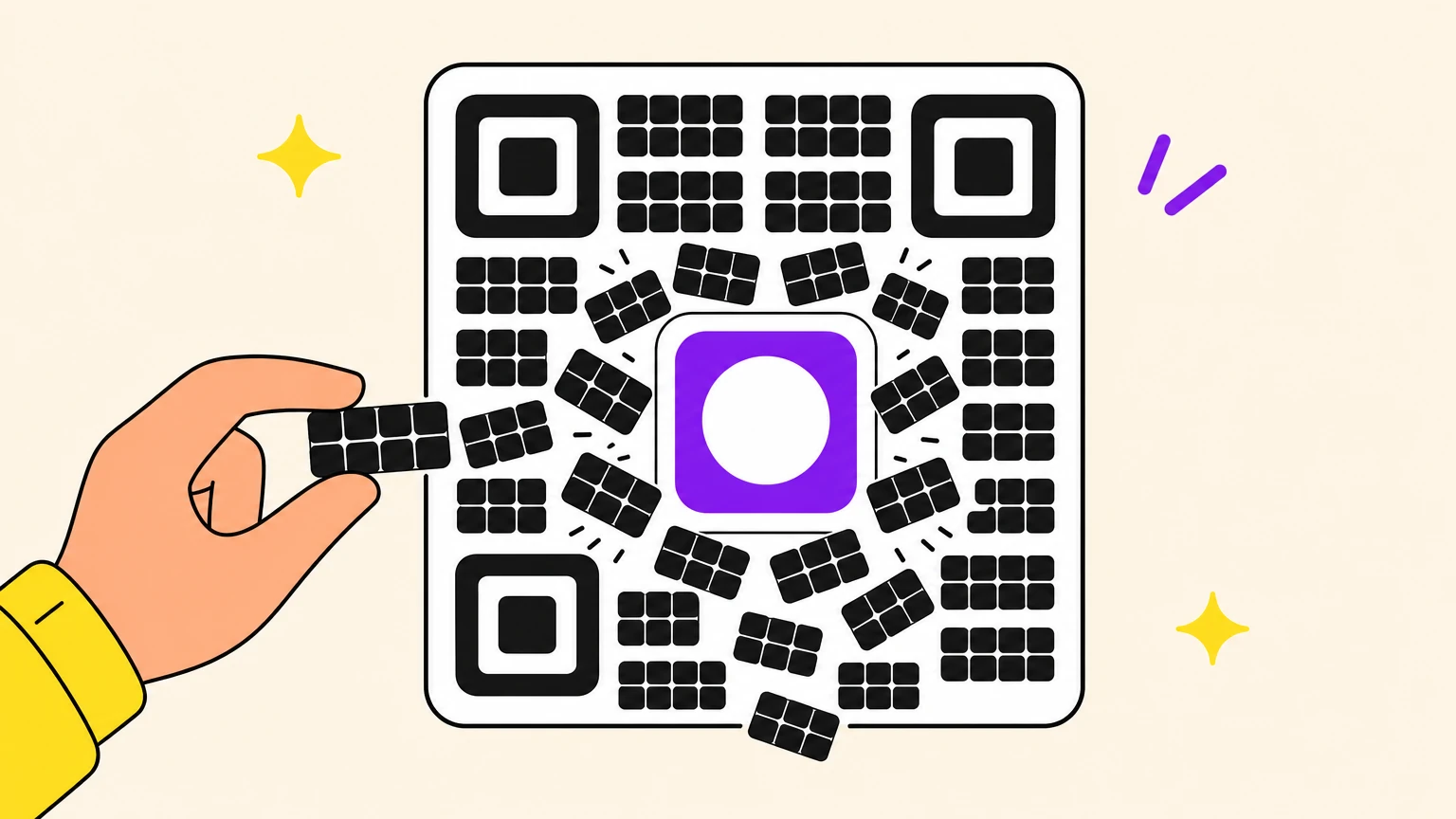
The ISO/IEC 18004 standard and Denso Wave, the QR code's inventor, count neither: L, M, Q and H repair roughly 7, 15, 25 and 30% of the codewords, the code's 8-module bricks. A logo doesn't tell the scanner what it hides, so each wrong codeword costs two correction codewords, a price already in the 30%: in the standard's example, 112 of them repair 56 of 172 (32.6%).
Spoil one module and the whole brick reads wrong, so a square logo's share of codewords runs one to two times its share of modules on most of our grids, up to four on the smallest. Counted that way, our H codes broke with a quarter to a third of their codewords touched, around the standard's 30%: the figure holds, in bricks, not square centimetres.
GS1's 2025 guide on 2D barcode colour and quality holds the only published measurement across correction levels we found, and it agrees with ours: the same round logo, about 16 mm, failed at L and M, marginally at Q, and passed at H; the code grew with each level, so the logo's share fell from 30% of the surface at L to 15% at H.
Error Correction Level H: What It Buys and What It Costs
Most generators pick the correction level for you, and few say which. A logo of 12% of the surface, all styles pooled, four levels:
- L: 0% of images read
- M: 46%
- Q: 85%
- H: 100%
H isn't free: correction takes room. Our 30-character link went from 29 x 29 modules at M to 33 x 33 at H, so at the same print size every module is 12% smaller. A Reddit commenter on r/qrcode warns that at a fixed print size, the move to H "can easily hand back more than it gains".
What your generator decides without telling you:
- Chrome's built-in generator stays at M and caps its centre image at a quarter of the width (6.25% of the surface), "less than 15% with considerable safety margin", says its source code. The cap stays under our first M failures on the long link (8%) and the contact card (12%), but not quite under the short link's (6%).
- QRCodeChimp switches from M to H when you add a logo; several open-source generators force H.
- QRCode Monkey says a logo can cover up to 30%, naming no level and no unit.
With a logo, ask for H. On a very small print, shrink the logo before the code.
Where to Put the Logo: Not a Corner, Not Always the Middle
Every guide puts the logo in the middle. In our simulation, the middle was the most fragile spot on small codes, corners aside.
On one of the three big corner squares, every configuration broke at 2 to 6% of the surface; from 49 x 49 modules up, even 2% killed every image. Those squares are how a scanner finds the code, and correction can't rebuild them.
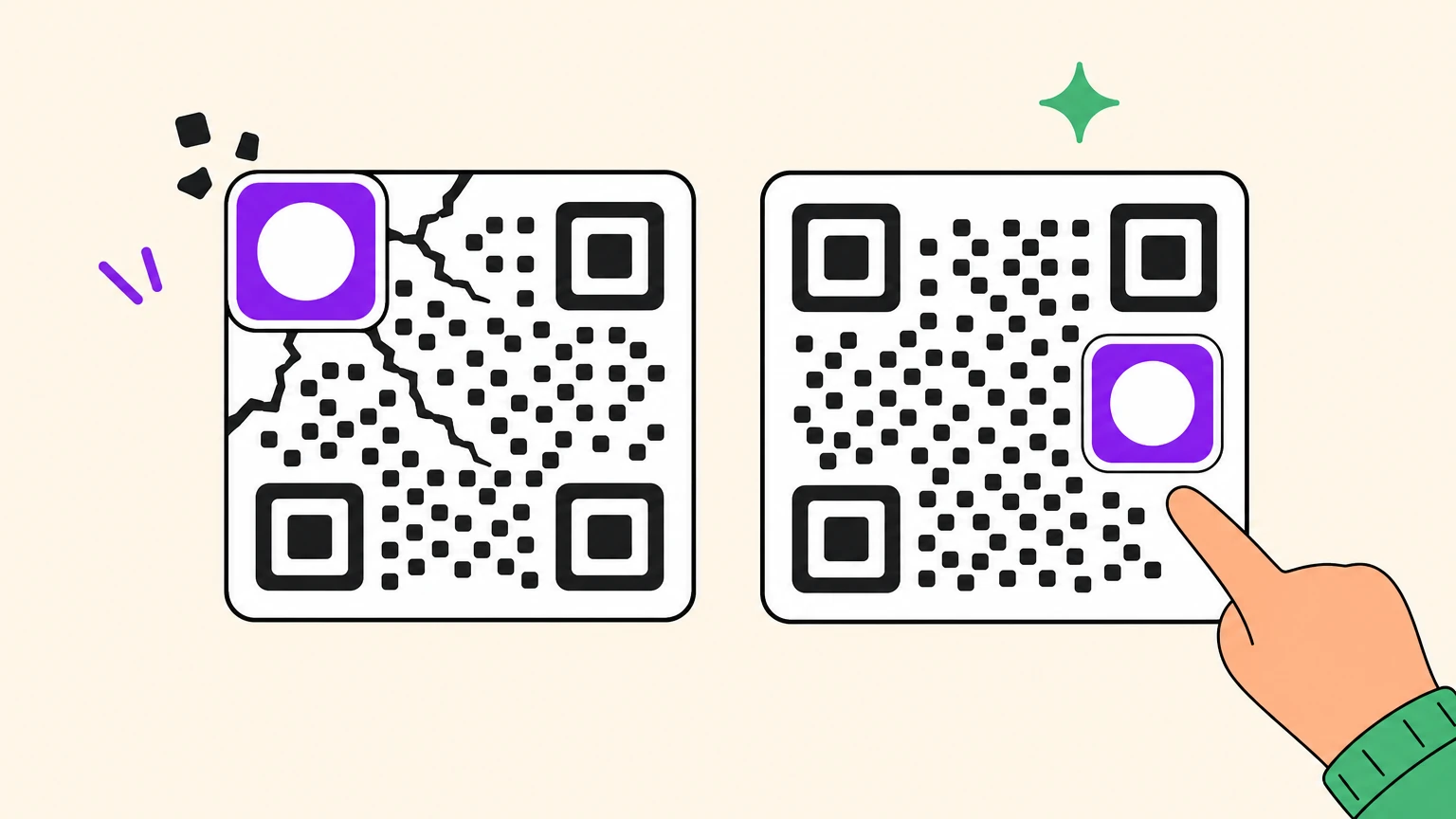
On short links at M (29 x 29), with a logo of 10% of the surface, 6 of 20 images read in the middle (ten links, two renders each), and all 20 along the left edge or over the small bottom-right alignment square. We haven't found why.
One detector, flat images, though: that small square helps re-align distorted grids (a curved bottle, a tilted phone), and QR STOCK, a Japanese QR vendor, says covering it hurt readability.
From 45 x 45 modules up, alignment squares sit in or around the centre. On our contact card at Q, a centred logo covered four and the code broke at 15 to 19% of codewords touched, well short of Q's 25%, which points to the grid, not the correction budget.
So: the middle, at the sizes above; never a corner; off-centre only after testing. Still refusing? Rule out the other reasons a QR code won't scan.
White Box or Bare Logo? The Padding Costs You Modules
The white margin people add around a logo to protect the code was the costliest style we tested. Median limit, 12 configurations (range in brackets):
- Dark round logo, no background (a transparent PNG): 15% of the surface (4 to 26%)
- Logo on a white box (the usual PNG): 12% (2 to 20%)
- Solid brand-colour box (violet in our test): 12% (2 to 22%)
- White box plus a one-module margin: 9% (0 to 18%)
What counted was the area hidden, not its colour: the white and violet boxes tied, the round logo hid just its circle (78.5% of its square) and went further, and the margin hid an extra ring of modules and broke first. That ring is for human eyes; the scanner pays for it. A real multicolour logo should land between the first two, depending on its background.
Cutting a hole? Keep it compact and on the module grid: ragged edges spoil more codewords, a Reddit commenter on r/qrcode notes.
Recoloured modules must stay dark on light: GS1 New Zealand's QR guide rules out red, orange and inverted colours. Light on dark is its own fight: inverted QR codes.
Short Link or vCard: Your Content Sets the Logo Budget
Same logo, same printed square: fine on one code, too much on another. What you encode sets the grid:
- A 30-character short link: 29 x 29 modules at M, 33 x 33 at H
- A 73-character link: 37 x 37 at M, 49 x 49 at H
- A contact card (vCard) of about 250 characters: 61 x 61 at M, 81 x 81 at H
In our simulation, denser codes mostly took a bigger share: at H, 12%, 16% and 18% of the surface from short link to card; at M, 4, 6 and 10%. Unsure? Use the short-link numbers, the strictest.
The card pays in module size: on a code 3 cm wide at H, 0.37 mm per module (below GS1 New Zealand's 0.396 mm minimum) against 0.9 mm for the short link. Its problem is print size, not logo size: see how small a QR code can print.
Logo limits (code width without its white margin):
- Short link at M: about 4, 6 and 10 mm for a code 2, 3 and 5 cm wide
- Short link at H: about 7, 10 and 17 mm
- Contact card at H: about 8.5, 12.7 and 21 mm
These are cliff edges: stay under them.
How to Test a QR Code With a Logo Before You Print
A print run has no undo, and a failed scan never files a complaint. Five minutes with two phones beats a reprint.
- Scan the exported file, not the preview: the ISO standard asks for checks on the final label or package.
- Use at least an iPhone and an Android, one of them old: our numbers come from Apple's detector alone, and decoders disagree on hard images.
- Scan from the real distance, in bright and dim light, at an angle up to 45 degrees, as QRCodeFYI's checklist suggests.
- Print one proof at real size and scan the paper.
- Export SVG for print, PNG at display size, never an enlarged PNG: a stretched PNG goes soft.
QR code with a logo not scanning? Fix it in this order:
- Remove the logo and rescan. If it reads, the logo is the culprit.
- Shrink it: at H, our white-box logo went from 33% of images read at 22% of the surface to 100% at 18%.
- Drop the white margin; keep the box tight.
- Get it off any corner square.
- Switch to H if your tool allows it.
- Small print, long content? Encode less, for fewer and bigger modules.
Confession: Our Logo Size Is Fixed, on Purpose
We made the unglamorous call in our generator before running a single image: no size slider. 9,624 images later, we're keeping it.
Oh My Code's free generator puts the logo in the middle, on a rounded white box, at a quarter of the code's width (6.25% of its surface), and switches from M to H once a logo is added. Logo, colours, frame and PNG or SVG downloads need no account. It won't check the scan for you, so run the test above.
Why keep that size? At H, even the worst style on our shortest link read every image up to 12% of the surface, about twice our logo's share. At M, that link started failing at 6 to 8%, right where the logo lands: the switch to H isn't cosmetic. The price we accept: 33 x 33 modules instead of 29 x 29.
A dynamic code holds a short link like the one we tested, so the grid stays small whatever the destination, and you can redirect it without reprinting. A static short link gives the same grid: static vs dynamic QR codes weighs the two.
Make yours, logo included, at a size our test covers.
QR Code With a Logo FAQ
Does a logo in a QR code affect scanning?
Yes, and abruptly. A logo spends error correction meant for scratches and wear, GS1's 2025 guide warns. In our simulation, every image read with a logo up to 12% of the surface at level H and 4% at M, whatever the content or style. Past the limit, reads collapse within a few points of surface.
Can you put a logo in the corner of a QR code?
Not on the three big corner squares: scanners use them to find the code, and error correction can't rebuild them. In our simulation, 2 to 6% of the surface there broke every code. Along the left edge or over the small alignment square, most codes held a bigger logo than in the middle; test first.
Do I need error correction level H for a logo?
Almost always, unless the logo is tiny. With a logo covering 10% of the surface, our simulation read 100% of images at H, 96% at Q, 69% at M and 3% at L. The cost: more modules for the same content (33 x 33 instead of 29 x 29 on a short link), so each module prints smaller.
Should I use a PNG or SVG for a QR code with a logo?
SVG for print, PNG for screens at the size shown. Check that the SVG embeds the logo: one that only links to the image file can open without it, the qr-code-styling library's documentation warns. Upload the logo itself as a PNG, not a JPG, whose compression lowers contrast, Uniqode advises. Then send the right file to the printer.