


Create a dynamic QR code
Print it once, change where it points as often as you like. Paste your link, switch on "Track scans", and your QR code lands in your account, already dynamic.
How it worksLoading the generator…
Same poster, new destination
In March, the poster in your shop window sends people to the spring sale. In June, you change the link in your account and the same poster sends them to the summer sale. Nobody climbs a ladder. The scan counter just keeps going.
Static or dynamic: the difference in two sentences
A static QR code holds your full link, written into the pattern: it works without us and never expires, but it will never change either. A dynamic QR code holds a short Oh My Code link that forwards to your destination at scan time, and that relay is what lets you change the destination and count the scans.
| Static QR code | Dynamic QR code | |
|---|---|---|
| Change the destination after printing | No, you reprint | Yes, from your account |
| Count scans | No | Yes: totals, days, countries, devices |
| What the pattern holds | Your full link | A short link that forwards to your link |
| Rules, end date, password | No | Yes |
| Account | Not needed: free PNG or SVG download | Yes, you create it from your account |
What happens when someone scans it
It all happens through the short link, in three steps.
- The phone reads the pattern and finds the short link.
- Oh My Code looks up the destination saved in your account and logs the scan on the way: date, country, device type.
- The phone heads to that destination.
Most of the time, the person scanning sees none of this and lands straight on your page. When you change the destination, you change the answer in step 2. The printed pattern stays the same, it still holds the same short link, and the next scan goes to the new address.
Create a dynamic QR code in four steps
- Paste your link into the generator at the top of this page.
- Set colors, logo and frame if you like, then switch on "Track scans".
- Create your account. The QR code you just designed is waiting for you, already dynamic.
- Download it and test it. PNG, SVG, PDF or EPS, whatever your printer wants. Scan it with your phone before anything goes to print: thirty seconds of testing beats reprinting five hundred flyers.
The generator on this page makes link QR codes. For an Instagram profile or Google reviews, use the page for that type (examples below): the "Track scans" switch is there too.
What you can change after printing
The destination, first, as many times as you like: there's no limit on edits. Around it, a few options that kick in at scan time:
- By time or day. The lunch menu at noon, the dinner menu from 7 p.m., one QR code on the table. The QR code that changes with the time
- By phone. The App Store on an iPhone, Google Play on Android. One QR code for both app stores
- By country or phone language. The Spanish version of your page for phones set to Spanish.
- An end date or a maximum number of scans. Past the limit, the scan lands on a page saying the code has expired.
- A password. The destination opens only once the password is entered.
- UTM parameters, added to the link on every scan, so Google Analytics knows the visit came from the poster.
- Meta, GA4 or Google Ads pixels, to measure the scan in your ad tools.
- Destination monitoring. Oh My Code checks the page behind your QR code every day and emails you if it goes down, if its certificate expires, or if it starts redirecting to another site.
Some options depend on your plan: the details are on the pricing page.
What you see about your scans
Every scan leaves a trace in your dashboard: numbers, never the person's name.
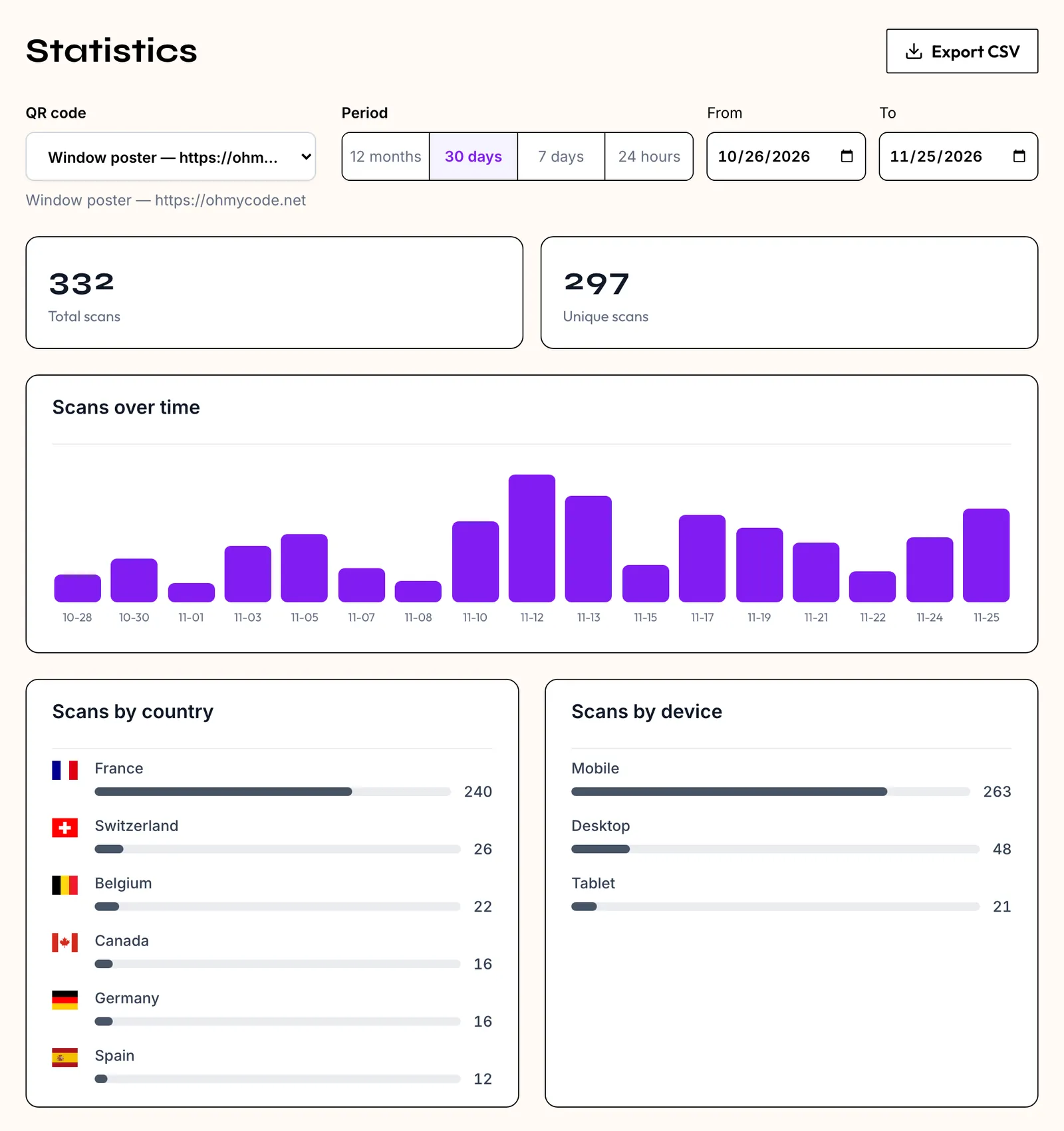
- Total scans and unique scans, over 24 hours, 7 days, 30 days, 12 months or a period you pick.
- The day-by-day curve, to see what Tuesday's trade show or the flyer drop actually did.
- Countries, and device types: mobile, desktop, tablet.
- A map of scan locations, if you turn location on and the person agrees to share their position.
- A CSV export for your spreadsheets and reports.
Put a different QR code in each spot, one on the window and another on the flyers, and you'll finally know which one pulls its weight.
Already printed a static QR code?
Bad news first: it won't become dynamic. Its link is written into the pattern, and no remote setting can rewrite ink.
Good news next: if that QR code points to a web address and it's saved in your Oh My Code account, the "Make it dynamic" button builds it a dynamic twin, with the same design and a brand-new short link. The static code stays untouched and keeps working. The twin is the one you print next time you order flyers or cards. From then on, it's the one that follows your link changes and fills your stats.
When static is enough
A dynamic QR code isn't always the answer. Static is enough when:
- the content won't change, like a phone number or an email address;
- it's a Wi-Fi network: the phone reads the network name and password directly, there's no link to edit, and if the password changes you make a new code;
- the object has a short life: a ticket, a one-day label, an invite for a single evening;
- you don't need to count scans.
For all of that, the free generator does the job, no account needed. Dynamic is for when the destination might move, or when you want to know whether your QR code is actually getting scanned.
Where a dynamic QR code makes the difference
- Business card: in its dynamic version, created from your account, the QR code opens a contact page you update when your job or number changes. The box of cards stays in the drawer instead of ending up in the bin.
- Google reviews: one sticker at the till, another on the tables, and you see which one collects more scans.
- Instagram, TikTok, LinkedIn: the sticker points to your profile today and to the giveaway next week.
- Event: the schedule moves at the last minute, and so does the QR code on the flyer.