
Free LinkedIn QR Code Generator
One scan and they're on your profile, before the handshake gets awkward. Paste your LinkedIn URL, style the code so it doesn't look like everyone else's badge, and download it free. Works for profiles and company pages, straight from your desktop, no app required.
Loading the generator…
What is a LinkedIn QR code?
It's your LinkedIn address folded into a scannable square. Someone points their camera at it, taps, and lands on your profile with your name spelled right, which is more than most conference introductions can promise. No typing, no "how do you spell that again", no hunting through search results for the right John Smith among forty thousand.
There are actually two animals under this name. LinkedIn ships one inside its mobile app, tied to your personal profile. And there's the kind you make yourself with a generator, from any URL you like, in any style you like. This page covers both, in that order, because the built-in one deserves a fair trial before we talk about what it can't do.
Where to find LinkedIn's built-in QR code
LinkedIn has had a QR code hiding in its app for years. Most users have never seen it, and the ones who found it usually found it by accident. Here's the map:
- Open the LinkedIn mobile app (iPhone or Android, same path).
- Tap the search bar at the top.
- Tap the small QR code icon on the right end of that bar.
- You're on the My Code tab: that square is your profile's QR code.
- From there you can Share my code (send it by message or email), Save to photos (download the image), or flip to the Scan tab to scan someone else's.
That's genuinely useful at a meetup. Two phones, one scan, connected, next round. If all you ever need is swapping profiles in person, the built-in code does the job and you can close this tab with our blessing.
When the built-in code stops being enough
Stay a minute, though, because the built-in QR has a short list of talents and a long list of "nope":
| You want to... | LinkedIn's built-in QR |
|---|---|
| Get it on your computer | No. Mobile app only; the desktop site has no QR anywhere |
| Make one for your company page | No. Personal profiles only |
| Point it at a job post, newsletter or event | No. Your profile, and that's it |
| Put your logo or brand colors on it | No. Standard black and white, take it or leave it |
| Print it big and sharp on a banner | Not really. You get a phone screenshot, not a print file |
| Count how many people scanned it | No. Zero stats |
| Change where it points later | No. It is what it is |
None of this is a scandal. LinkedIn built a handshake tool, and it shakes hands fine. But the moment your QR code needs to live on a badge, a booth, a resume or a slide, you've outgrown it. That's what a generator is for.
How to create your own LinkedIn QR code
- Copy the LinkedIn URL you want to share. From the app: your profile → three dots → share → copy link. From a browser: grab it straight from the address bar.
- Paste it in the generator at the top of this page.
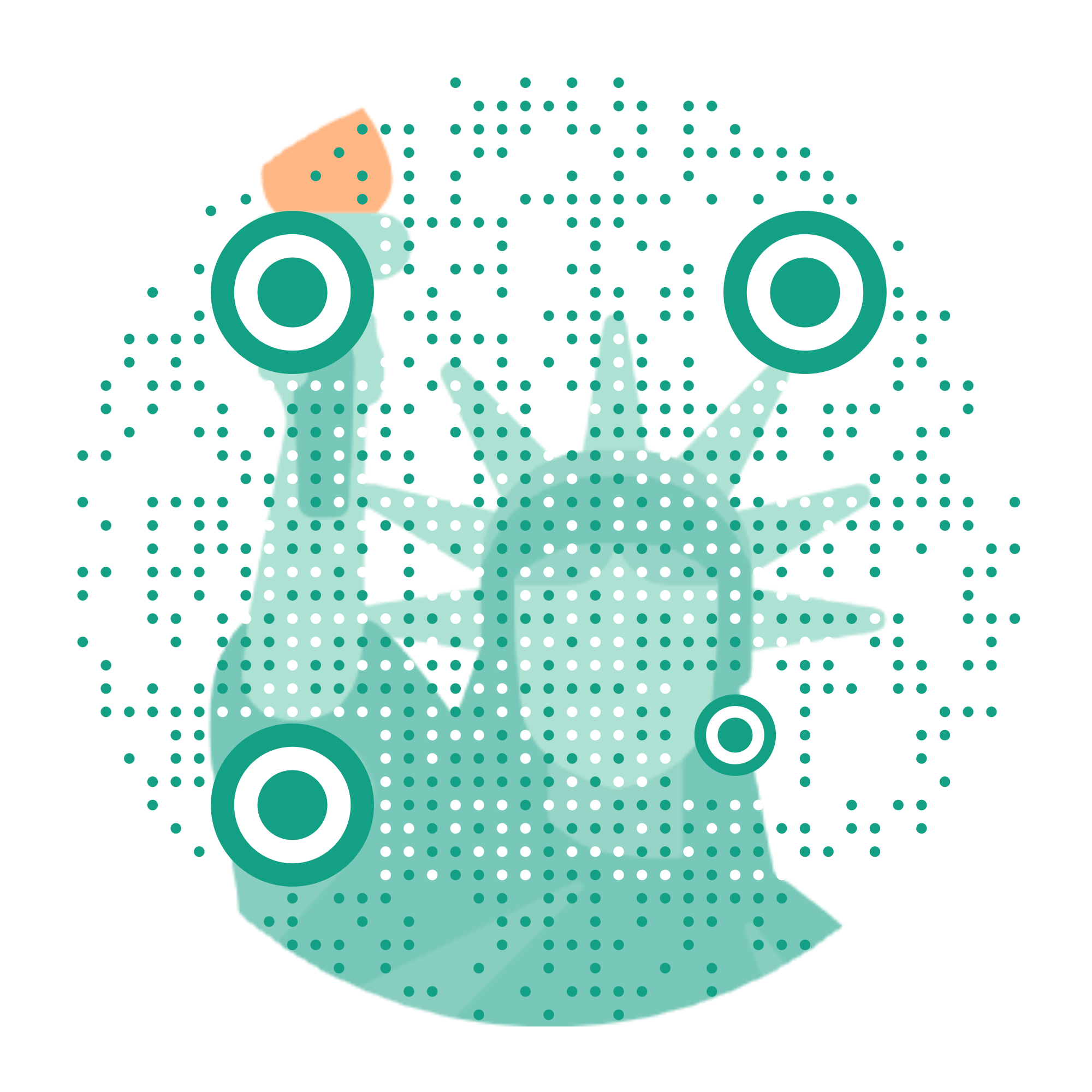
- Make it look like you. Colors, one of five pattern shapes, your photo or logo in the center, a frame that says "Let's connect". Or start from a template and be done in a minute.
- Test, then download. One scan with your own phone before it goes anywhere near a printer. Download free, no account.
Which URL should you paste? Anything on LinkedIn works:
| Destination | The URL looks like |
|---|---|
| Your profile | linkedin.com/in/yourname |
| Your company page | linkedin.com/company/yourbrand |
| A job you're hiring for | linkedin.com/jobs/view/… |
| Your newsletter | linkedin.com/newsletters/… |
| An event | linkedin.com/events/… |
Thirty seconds of housekeeping first. If your profile URL still ends in a serial number (/in/jane-doe-8a91b2447), claim your custom URL before you encode anything: LinkedIn settings → public profile → edit your custom URL. It's free, no Premium involved, and linkedin.com/in/janedoe looks a lot better printed under the code.
No app, no phone: make it from your desktop
Half the searches around LinkedIn QR codes boil down to "how do I get this on my laptop", and the honest answer is: LinkedIn won't give you one there. The desktop site simply doesn't have the feature.
A generator doesn't care. You're already at your desk with your profile open in a browser tab: copy the URL from the address bar, paste it here, style, download. The file lands where your design tools and your printer already live, instead of in your phone's camera roll where badge templates go to die.
Make it scannable from across the booth
A LinkedIn QR code is usually seen in the wild pinned to a lanyard or squeezed into the corner of a business card, which means it's competing for attention at arm's length or worse. Design accordingly:
- Brand it. Your colors, one of five pattern shapes, a frame with a call to action. There's a one-click "Match my brand colours" that pulls your palette from your website, which feels like cheating in the best way.
- Put a face on it. QR codes survive having their center covered (error correction is built into the standard), so your logo, or your actual face for a personal badge, sits in the middle without breaking a single scan.
- Size floor: 2×2 cm. That's the minimum for a badge scanned at arm's length. For a booth banner, scale it with the distance: a code read from 2 meters should be around 20 cm wide.
- Contrast wins. Dark pattern, light background. Your brand's subtle grey-on-grey may be elegant, but elegance that doesn't scan is just decoration.
- Print from vectors. PNG is fine on screens. For print shops, an account gets you SVG and EPS exports that stay razor sharp from business card to trade-show wall.
And the field trick nobody expects: save your styled code as your phone's lock screen. Someone asks to connect, you press one button and hold up your phone. It's the built-in QR's party move, except wearing your brand.
Static or dynamic: what happens after you print
The free download encodes your LinkedIn URL directly into the pattern. No shortened link in the middle, no redirect through us, no expiry date. If Oh My Code vanished tomorrow, your printed code would keep working, because the destination is baked into the ink. That's the deal, and we're a little proud of it.
The trade-off of direct encoding: the destination is permanent. Change your custom URL later and a printed static code points at yesterday. That's where the dynamic twin comes in. Flip the "Track scans" toggle (or create an account after downloading) and your code gets a managed link instead, which unlocks the two things print can't do alone:
- Scan counts. You handed out 200 cards at the conference; now you know 63 people actually scanned, and that Tuesday's booth spot beat Wednesday's. Your badge just became a measurable channel.
- An editable destination. Point it at your profile today, at the job you're hiring for next quarter, at the company page during the campaign. Same printed code, new destination, zero reprints.
For one person networking, The Friendly plan covers it comfortably. Recruiting teams and sales floors printing badges by the dozen, with every rep's code tracked in one dashboard: that's The Boss's territory.
Where a LinkedIn QR code earns its keep
Conference badges and lanyards. The classic. Your profile one scan away for everyone you talk to, and with tracking on, the event's networking value stops being a feeling and becomes a number.
Business cards. Front or back, the code turns a piece of cardboard into a live profile. Pairs beautifully with a business card QR code carrying your full contact details; some people put contact details on one side and LinkedIn on the other.
Resumes and CVs. A small code in the header takes recruiters from paper to your full profile, recommendations included, without anyone typing your name. Recruiters famously skim; make the deep dive effortless.
Email signatures. For the colleagues and clients who'd rather scan the screen than click a link in a message from someone they just met. Also survives print-outs of the email, which links famously don't.
Slide decks and webinars. Last slide, big code, "let's stay in touch". The audience is already holding their phones. Meet them where they are.
Booths, banners and shop windows. Company page code at poster size, for the "who are these people" moment. This is where vector exports and the 1-to-10 distance rule stop being trivia.
Career fairs. A code per open role (that's the job posting URL from the table above), and candidates apply from the queue instead of photographing your roll-up banner.
Before you print 500 badges: the visibility check
Here's the pothole nobody mentions: your QR code is only as public as your profile. If your public profile is switched off or trimmed down in LinkedIn's settings, a recruiter who scans your badge without being logged in may hit a login wall or a half-empty profile instead of your carefully written story.
Two-minute insurance policy: check Settings → Data privacy → public profile, then open your profile URL in a private browsing window (that's how a stranger sees it) and scan your printed test with a phone that isn't yours. Then send the file to the printer.
The code won't scan (or won't show)? Run this checklist
- Can't find the built-in QR in the app? Update the app, then look for the QR icon inside the search bar, not in your profile menu. LinkedIn moves furniture regularly.
- Scan lands on a login page? That's the visibility check above. Fix the public profile settings, not the code.
- Old printed code points to a dead profile URL? You changed your custom URL after printing a static code. Regenerate and reprint, or switch to a dynamic code so the next change is a two-click edit instead of a print run.
- Code too small or low contrast? Below 2×2 cm on a badge, cameras start squinting. Reprint bigger, darker, with white space around it.
- Glossy badge glare? Matte lamination, or tilt the badge when someone scans. Shiny plastic plus ceiling spotlights equals mirror.